> ## Documentation Index
> Fetch the complete documentation index at: https://zite.com/llms.txt
> Use this file to discover all available pages before exploring further.
# Auto mode
> Use Auto mode when you want Zite to keep building like Build, with fewer approval clicks.
Auto mode **makes changes** to your app the same way [Build mode](/help/platform/how-to-build/agent-modes/build-mode) does. Use it to create features, fix issues, update design, or work on workflows and data.
The difference is approval. **Build** asks you to approve certain changes. **Auto** applies most changes without waiting for an Approve click, so the agent can keep working through longer builds with fewer interruptions.
Auto is optional. **Build** stays the default. Zite remembers the mode you pick for each workspace.
## When to use Auto mode
* You trust the agent to keep building with fewer approve clicks
* Larger or multi-step builds where Build's approval stops would interrupt the flow
* You can stay on the page while Auto works, or you are ready to continue if the connection drops
Prefer [**Build mode**](/help/platform/how-to-build/agent-modes/build-mode) when you want a checkpoint before certain changes. Prefer [**Plan mode**](/help/platform/how-to-build/agent-modes/plan-mode) when you still need to scope first. Prefer [**Chat mode**](/help/platform/how-to-build/agent-modes/chat-mode) when you only want answers.
Open the mode menu and choose `Auto`, or press `Shift` + `Tab` until you reach Auto mode. Auto is labeled **Auto-approve actions to build and chat**.
The same mode control is available on the workspace home.
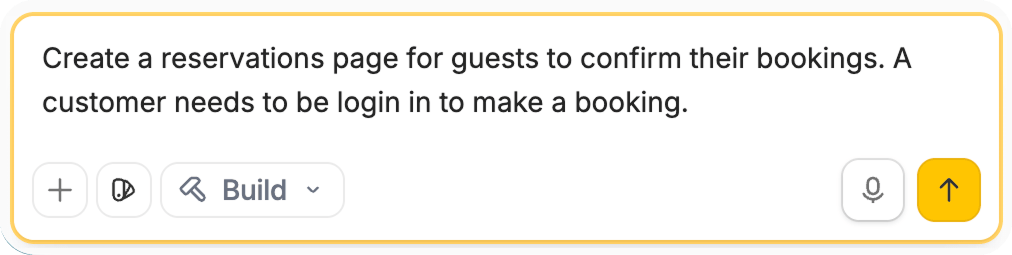
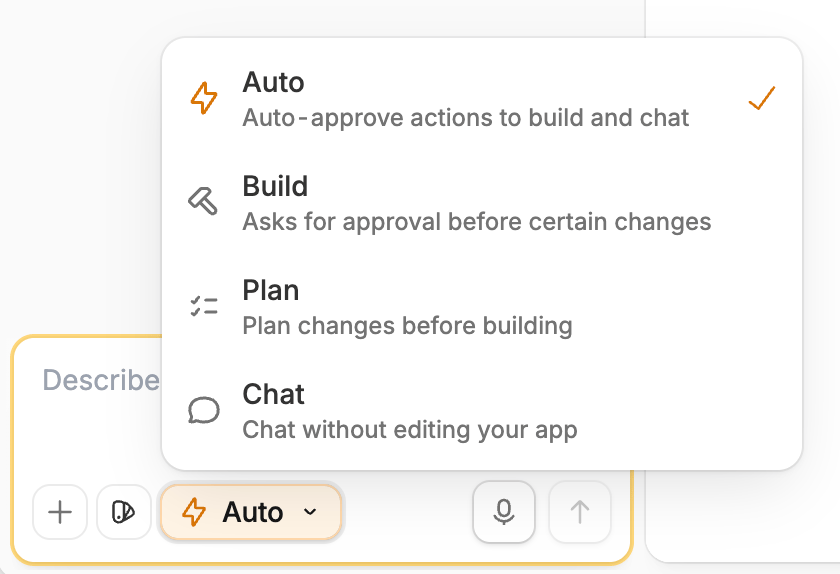 Include the outcome you want and where the change should happen. Auto can change the app the same way Build can.
 Read the Agent's summary, then test the feature it built.
Changes applied without an Approve click still appear in the Changes panel, marked as auto-approved (amber bolt). A short banner summarizes how many changes were auto-approved and links to `See changes`.
You can't undo table or field changes from that summary. Reverse data changes in the database, or keep editing the app as usual. To restore an earlier app version, use [Version control](/help/platform/basics/history).
Auto still stops when you need to sign in to connect an integration, enter a secret, create a new app, answer a clarifying question, or wait for a workflow's next run to finish. It may also pause if the agent is about to make a hard-to-reverse change you didn't clearly ask for — such as deleting a table or field, changing a field type, removing a dropdown option, or widening who can access data — or when the work would reach real people, like sending email or taking a payment. That pause is the agent's judgment, not a guarantee.
Auto is built for longer hands-free turns, not leaving the tab and forgetting about it. If you close the tab or lose the connection, Auto can stop. Stay on the page while it works, or be ready to continue from where it left off.
Read the Agent's summary, then test the feature it built.
Changes applied without an Approve click still appear in the Changes panel, marked as auto-approved (amber bolt). A short banner summarizes how many changes were auto-approved and links to `See changes`.
You can't undo table or field changes from that summary. Reverse data changes in the database, or keep editing the app as usual. To restore an earlier app version, use [Version control](/help/platform/basics/history).
Auto still stops when you need to sign in to connect an integration, enter a secret, create a new app, answer a clarifying question, or wait for a workflow's next run to finish. It may also pause if the agent is about to make a hard-to-reverse change you didn't clearly ask for — such as deleting a table or field, changing a field type, removing a dropdown option, or widening who can access data — or when the work would reach real people, like sending email or taking a payment. That pause is the agent's judgment, not a guarantee.
Auto is built for longer hands-free turns, not leaving the tab and forgetting about it. If you close the tab or lose the connection, Auto can stop. Stay on the page while it works, or be ready to continue from where it left off.
Related topics
This documentation is built and hosted on [Mintlify](https://mintlify.com), a developer documentation platform.