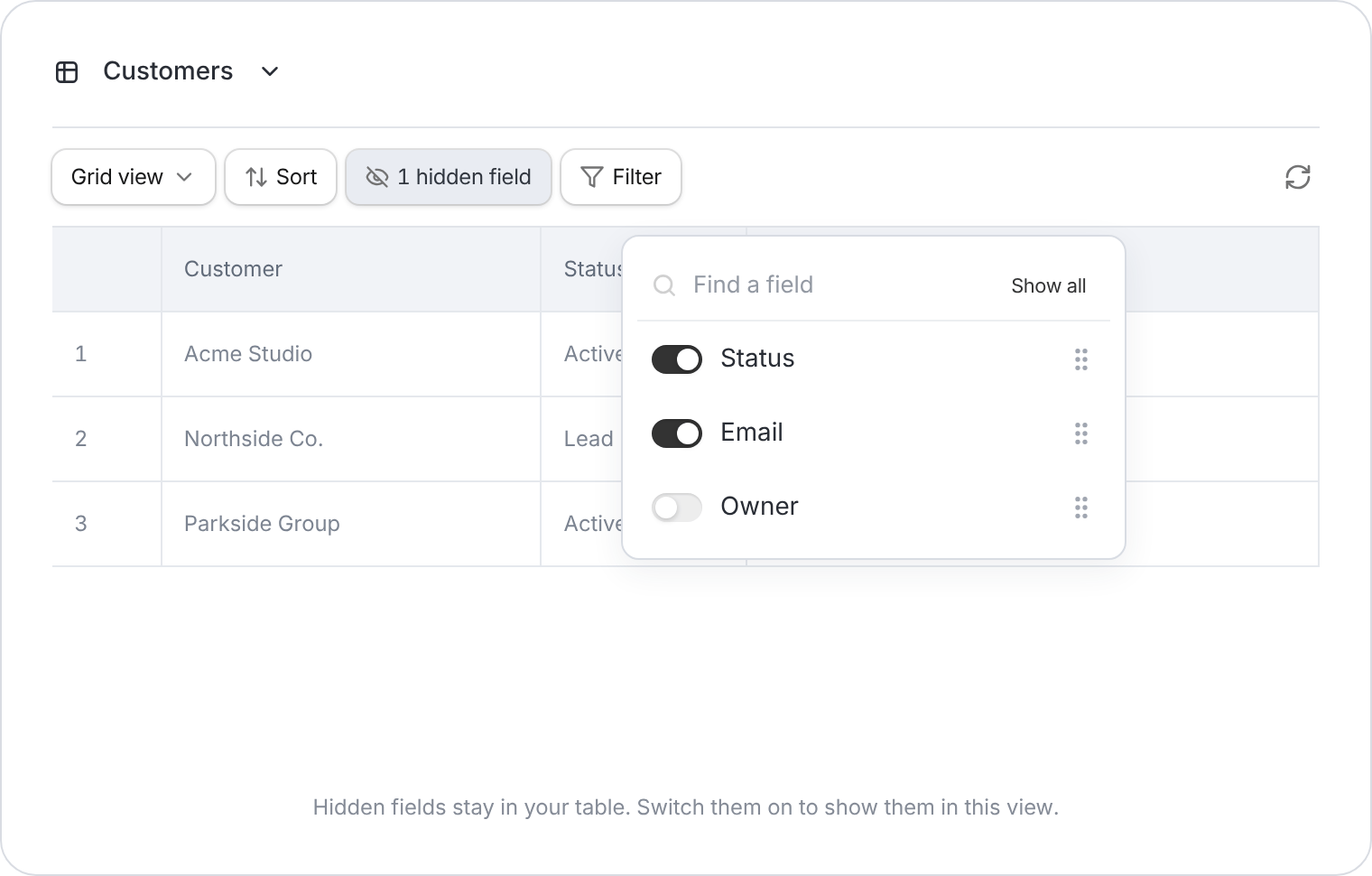
Use these checks when records, fields, imported data, or connected apps do not look the way you expect. Most issues are caused by the current view, filters, sorting, hidden fields, table selection, or recently changed data.

Start here

Before changing or deleting anything, try these quick checks:
  • Click Refresh data in the top toolbar.
  • Confirm you are viewing the correct database and table tab.
  • Check the current Grid view, Filter, Sort, and Hide fields settings.
  • If you are about to import, delete, bulk edit, or restore data, create a backup first.

Ask the Database Agent

The Database Agent can query the live data in your current database. Use it when you want to confirm whether data exists before changing filters, views, or fields. Click Agent at the top of your database, then ask a focused question such as:
  • “Show records where the Title field is empty.”
  • “List records that have no linked lessons.”
  • “Which records were created most recently?”
  • “Summarize records that are missing images or files.”
Changes that write data, update fields, run scripts, or connect integrations require your approval before they run.

Missing records

If records appear to be missing, they may still exist but be hidden by the way the table is displayed. Check the current view
  • Click Grid view and switch to another saved view, or create a clean view for troubleshooting.
  • Different views can show the same table with different filters, sorts, and hidden fields.
Check filters
  • Click Filter to review or remove active conditions.
  • A condition like Status = Active hides inactive records from the current view.
  • Use condition groups to narrow down the issue without changing the underlying records.
Check sorting
  • Click Sort to see whether records are being pushed to the top or bottom.
  • Sort by a field such as Created at, Updated time, or your primary field to find recent or older records.
Check the table and database
  • Confirm you are in the correct database.
  • Check the table tabs at the top, especially if your database has multiple related tables.
  • If records are linked from another table, open that table and check the linked field directly.

Missing columns or fields

If fields are missing from the grid, they may be hidden from the current view rather than deleted.
  • Click Hide fields to see which fields are currently visible.
  • Turn fields back on from the searchable field list.
  • Remember that hidden fields apply to the current view and do not delete data.
  • If the field was renamed, use the Database Agent to ask which fields exist in the current table.
If a field type looks wrong, right-click the column header and choose Edit field. You can review the field label, default value, and field type from there.
Converting some field types can remove data that does not fit the new type. Create a backup before converting important fields.

Data looks wrong after import

If imported records or columns do not look right:
  • Open the table options menu next to the table name and review whether the data was imported into the expected table.
  • Check field types such as Number, Currency, Date, Checkbox, Single select, Multiple select, Link to table, Lookup, and Attachments.
  • If you imported into an existing table, confirm the imported columns were mapped to the right fields.
  • Use Filter to find blank required fields or unexpected values.
  • Use the Database Agent to ask for records with missing values, duplicate values, or mismatched linked records.
For a larger cleanup, export a copy first from the table options menu or create a backup.

Data is not showing in an app or form

The Data, Forms, and Apps tabs use the same database in different ways.
  • Use Data to inspect and fix the source records.
  • Use Forms to create forms that sync responses into the database.
  • Use Apps to create interfaces on top of the database.
If data appears in Data but not in a connected app or form:
  • Click Refresh data in the database toolbar.
  • Check whether the app or form is connected to the correct table and fields.
  • If you changed field names, field types, or linked tables, review anything connected to those fields.
  • If the connected app has a publish step, publish the app after making database changes.

Deleted data and restore options

If you still cannot find the data, it may have been deleted or changed.
  • If the whole database was moved to trash, restore it from the dashboard Trash. See Restore deleted databases.
  • If records, tables, or fields changed inside an existing database, open Manage backups and use Backup and Restore.
  • If you do not have a manual backup, point-in-time restore may let you preview and restore a recent database state.
Restoring a database overwrites the current database state. Preview the backup first, and check connected apps, forms, automations, and integrations after restoring.
Last modified on June 30, 2026