Overview

Zite Automations are workflows that run without someone manually clicking a button. Use them when your app needs to react to time, react to events from other tools, or keep data moving between your app, Zite Database, and the rest of your stack. There are two built-in automation options:
Automation typeWhat starts itBest for
Scheduled workflowsA one-time or recurring schedule.Reports, reminders, follow-ups, cleanup jobs, and other time-based tasks.
WebhooksAn event sent from another app or service.Payments, form submissions, support tickets, status updates, and other external events.
Both options start a Zite workflow. After the workflow starts, it can write to a database, call an integration, send a notification, run AI, update app data, or continue through any other workflow steps your app needs.

Scheduled workflows

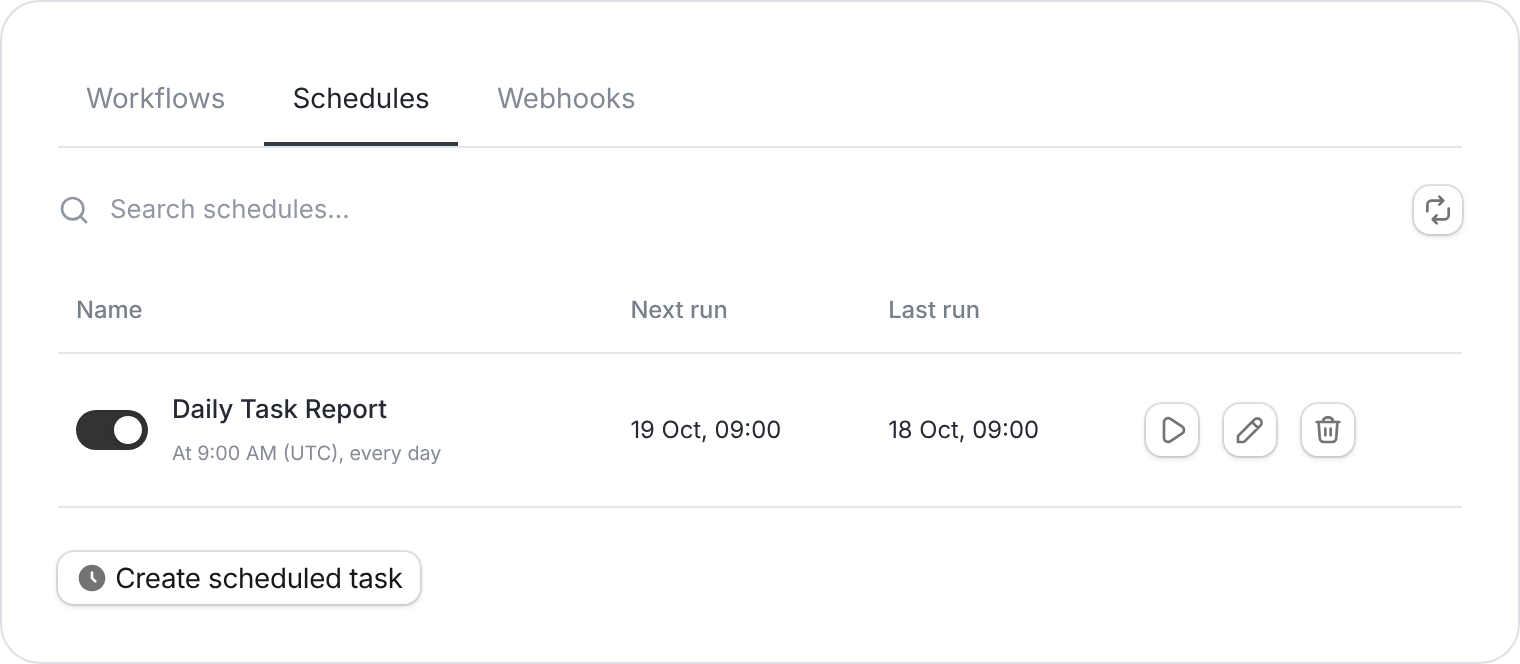
Scheduled workflows run at a future time or on a recurring cadence. You can create schedules while building an app, or build in-app actions that let users create their own reminders and follow-ups. Use scheduled workflows when the trigger is based on time:
  • send a weekly summary of open support tickets
  • email a monthly operations report
  • remind a user to follow up with a lead in three days
  • clean up stale records on a recurring schedule
Workflows view showing scheduled workflows and their next run times
Scheduled workflows are a Business plan feature. Existing schedules keep running if you downgrade, but you need to upgrade again before creating new schedules.

Webhooks

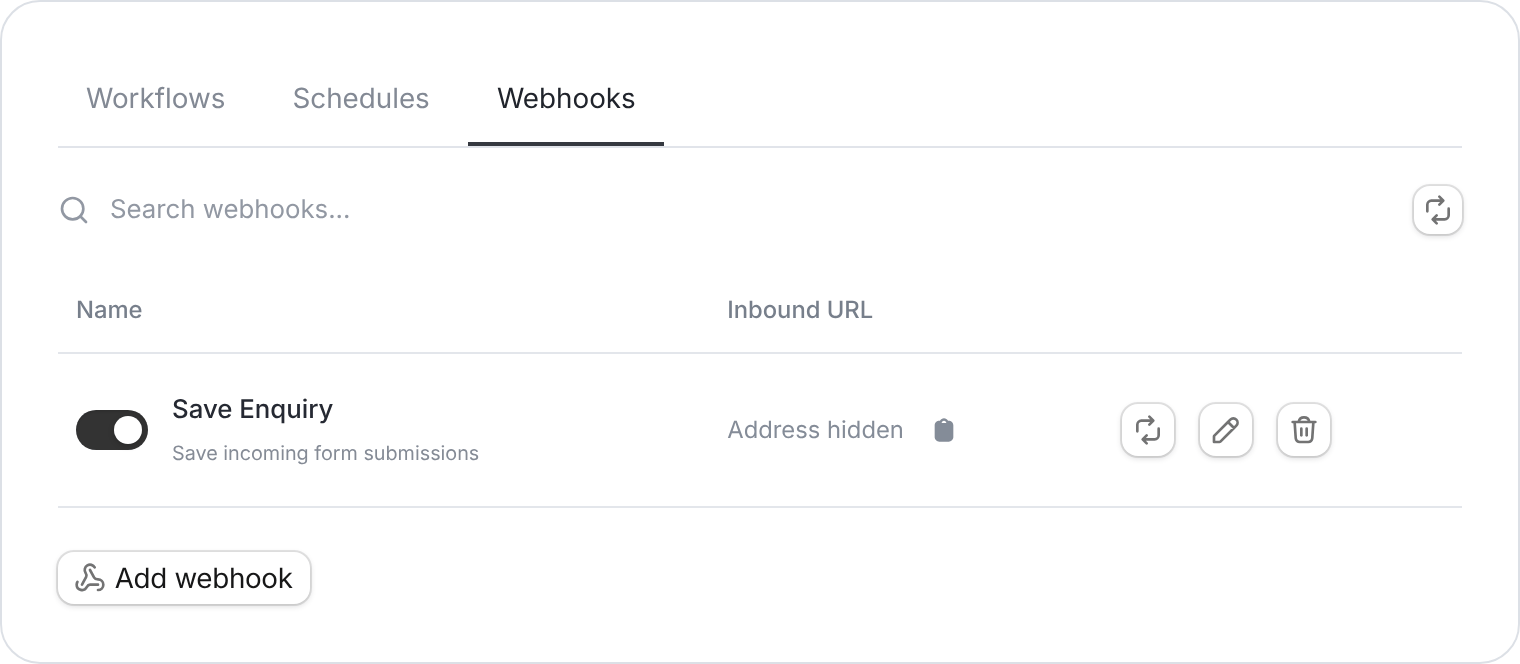
Webhooks run when another app sends an event to Zite. Zite gives you a webhook URL, you paste it into the source app, and incoming events trigger a workflow with the event payload. Use webhooks when the trigger happens outside Zite:
  • save Stripe payment events to a Zite Database
  • create a task when a form submission arrives
  • notify a team when a third-party status changes
  • update an app dashboard from another system
Webhooks view showing a webhook trigger with its inbound URL
Webhooks are available on all plans.

Which option should you use?

Choose the option based on what should start the workflow.
If you want to…Use
Run something every day, week, month, or at a specific future time.Scheduled workflows
Let app users create personal reminders or follow-ups.Scheduled workflows
React when another service sends an event.Webhooks
Capture structured data from a payment provider, form tool, CRM, or support system.Webhooks
Some apps use both. For example, a customer portal can use webhooks to save subscription events from Stripe, then use a scheduled workflow to send a weekly account-health summary.

Manage automation runs

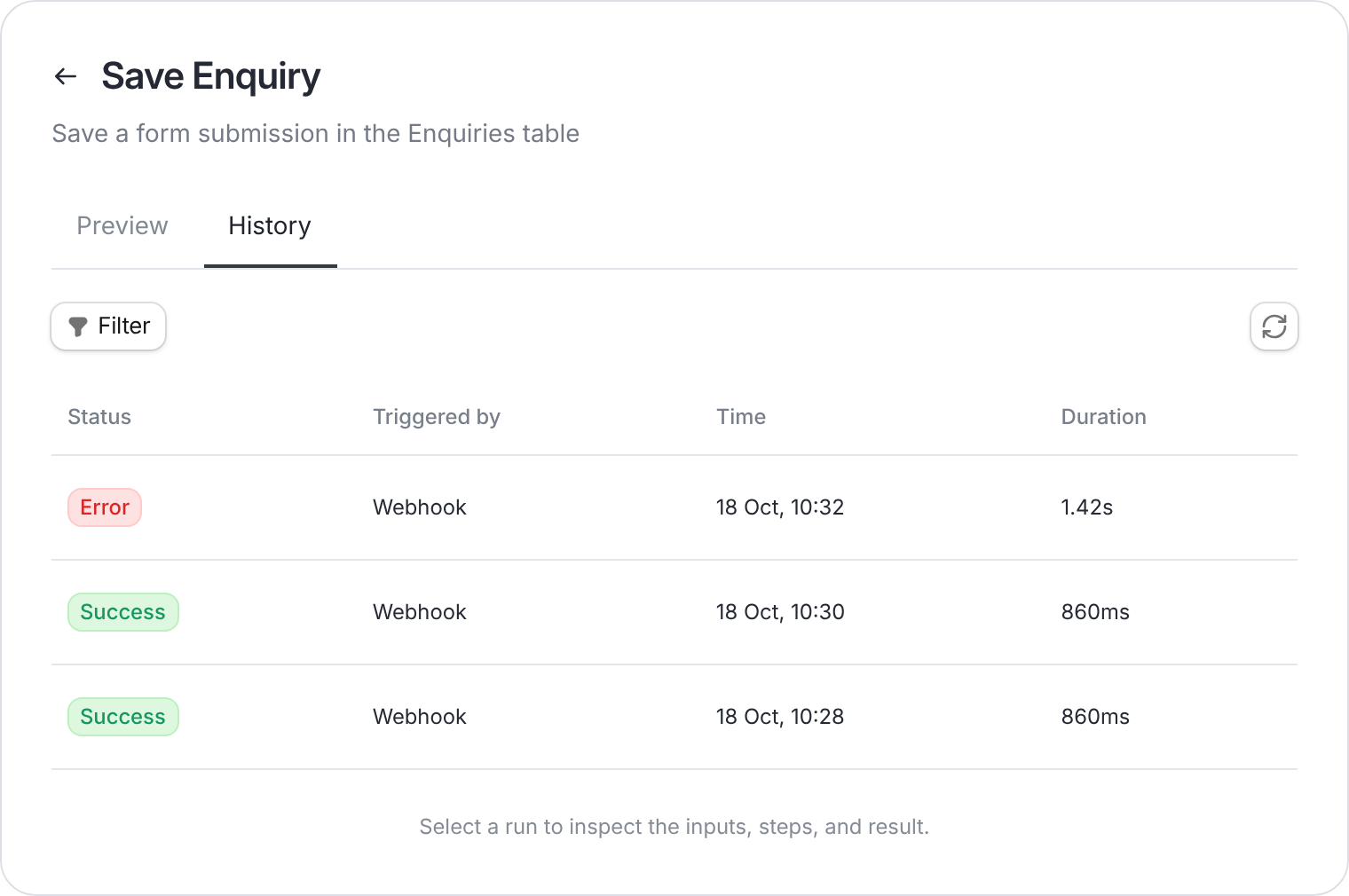
Scheduled workflows and webhooks both appear in Workflows, where you can review the workflow logic and check past runs in History. Use run history to confirm:
  • whether the automation fired
  • whether the workflow succeeded
  • what trigger started the run
  • which database, integration, or notification steps ran
Workflow history filtered to runs triggered by a webhook

Next steps

Read the detailed guides when you are ready to set up a specific automation:

Scheduled Workflows

Create one-time and recurring workflows that run on a schedule.

Webhooks

Trigger workflows from events sent by another app or service.
Last modified on June 29, 2026