How it works
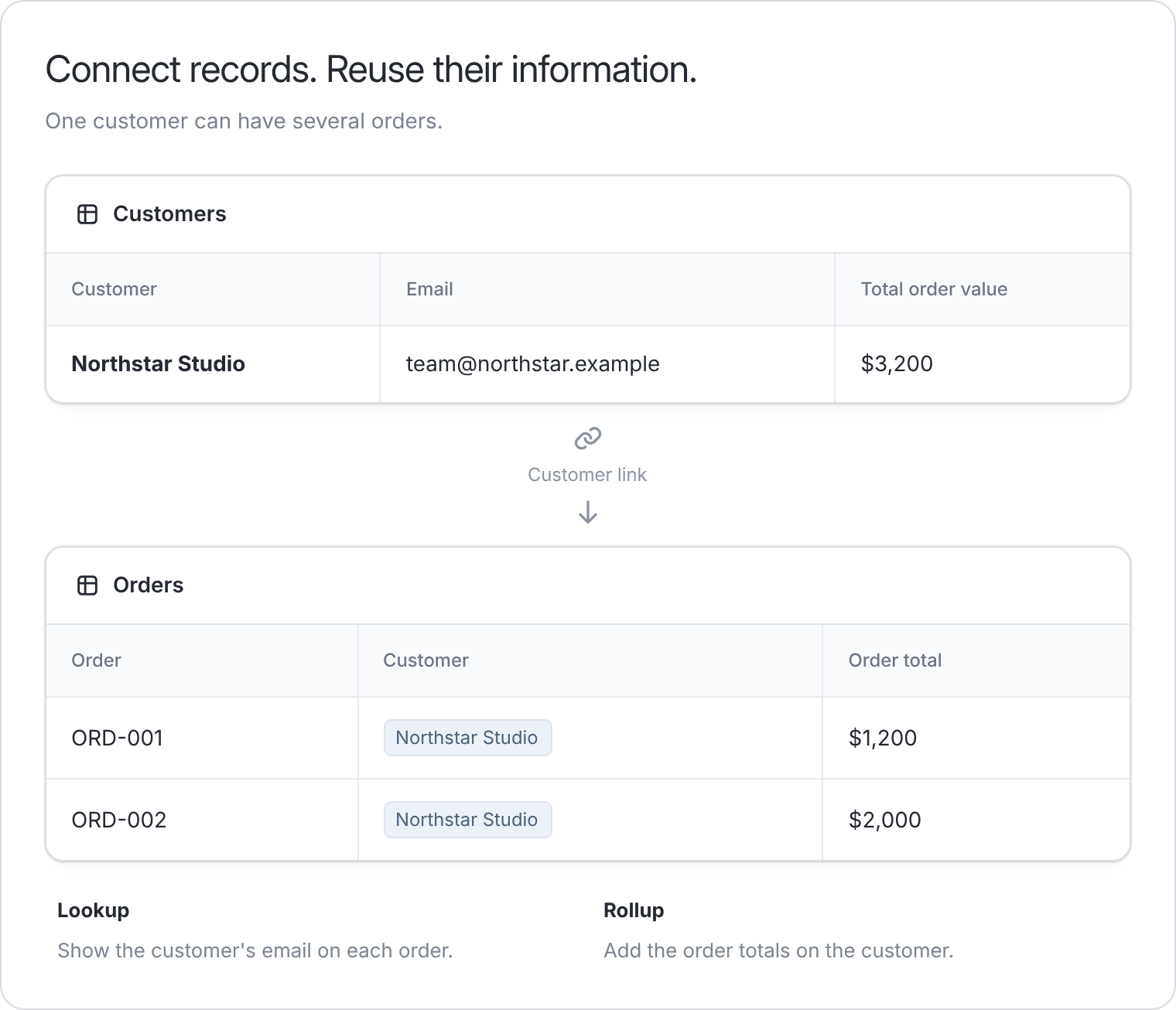
Linked records connect rows across tables in the same database. Instead of typing the same information in multiple places, you can select an existing record from another table and keep the relationship consistent. The easiest way to create these relationships is to ask the Database Agent in natural language. The agent can inspect your existing tables, add linked-record fields, and tell you when a relationship already exists. For example, in aLine-items table, each row can link to the matching quote in a Quotes table. When you add a line item, you select the quote it belongs to, such as Q-0001 or Q-0002. This keeps quote details in one table while letting each quote collect multiple line items.

Create relationships with the Database Agent
ClickAgent at the top of your database, then describe the relationship you want to create.
Use table and field names when you know them:
- “Create a linked-record field called Quote on Line-items that links to Quotes.”
- “Set up a relationship between Quotes and Line-items so each line item belongs to one quote.”
- “Set up a relationship between Tasks and Projects so each task belongs to one project.”
- “Add a Company field to Contacts that links each contact to a company.”
- “Check whether Lessons is already linked to Courses, and create the relationship if it is missing.”
Changes that write data or update your database schema require your approval before they run.
Common use cases
- Employee Records: Assign employees to managers, departments, or teams
- Quotes and invoices: Link line items to a quote or invoice
- Project Management: Link tasks to a specific project or team member
- Sales: Link contacts, companies, deals, and orders
- Event Planning: Assign attendees to sessions, workshops, or ticket types
- Inventory Management: Tag stock items to suppliers or product categories
Link records manually
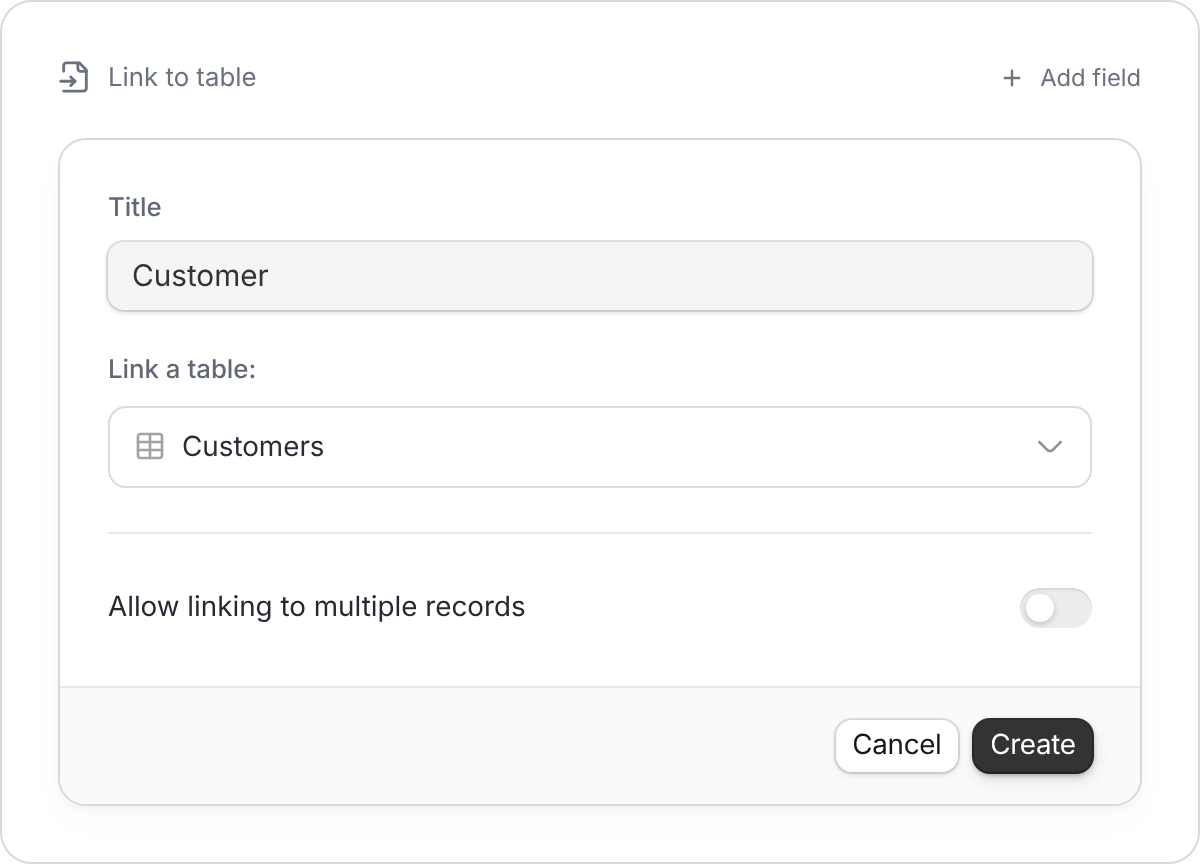
You can also create linked-record fields yourself from the table grid.1
Add a new column
Click 
+ Add field and choose Link to table.
2
Set details
Enter a Title or column name, then 
That’s it! You can now pick a record from a dropdown.
Choose a table and click Create.
3
Disable multiple record linking (Optional)
By default, this field 
If you only want to link a single record, simply untoggle this option.
Allows linking to multiple records, meaning you can reference more than one record in a field.
Tips for setting up relationships
- Link to the table that owns the source record. For example, link Line-items to Quotes, Tasks to Projects, Orders to Customers, or Lessons to Courses.
- Use clear field names like
Quote,Customer,Project,Course, orAssigned to. - Allow multiple linked records when one record can relate to several records, such as a project with many team members.
- Disable multiple record linking when each record should only point to one related record, such as one task belonging to one project.
- Use Lookup fields when you want to display information from the linked record in the current table.