

Add or edit a field
- Select Add field at the right of your table, then choose a field type.
- Enter a Title and adjust the settings for that type.
- Select Create. To change an existing field, open its column menu and select Edit field.
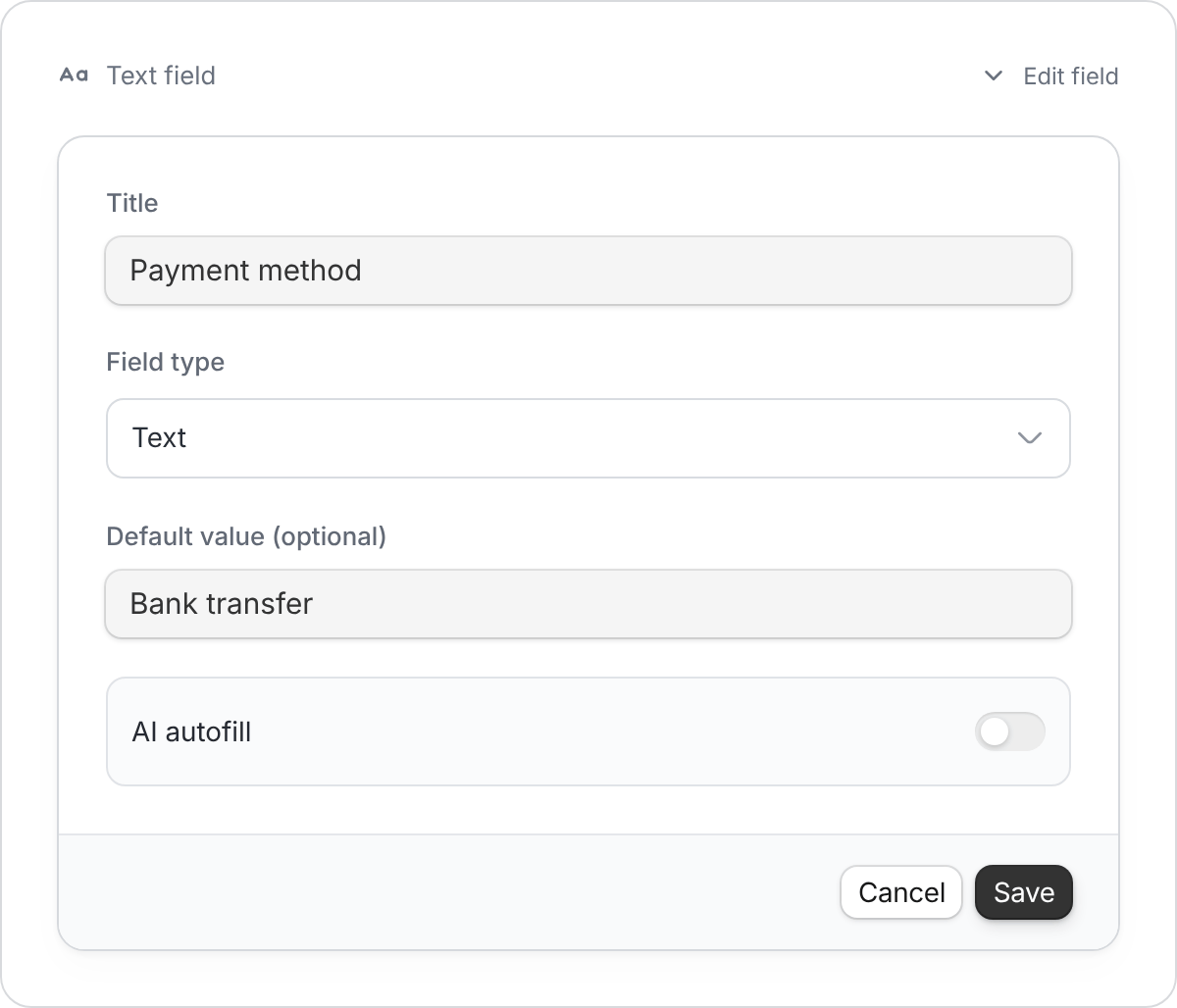
Field settings vary by type. This example sets a default payment method.
Choose the right field type
Where available, Default value supplies a starting value for new records. It doesn’t fill existing blank cells.
Use the column menu
Open the menu beside a field’s name to edit, duplicate, hide, sort, or delete it.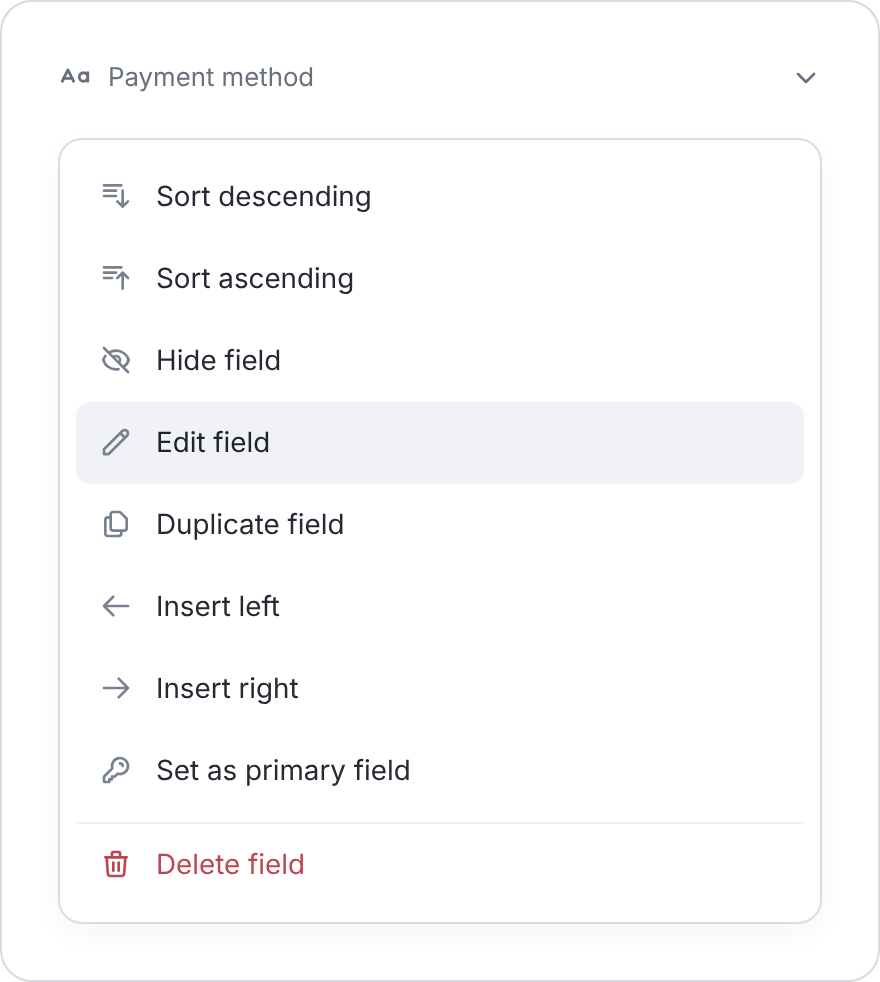
Hide a field to simplify a view. Delete it only when you no longer need its data.
- Hide field removes it from the current view. Its data stays in the table.
- Duplicate field gives you a separate field to work with.
- Delete field removes the field and its values. Review the affected items shown before confirming.