

Delete a single record
Right-click a cell in the record, choose Delete record, then confirm Delete.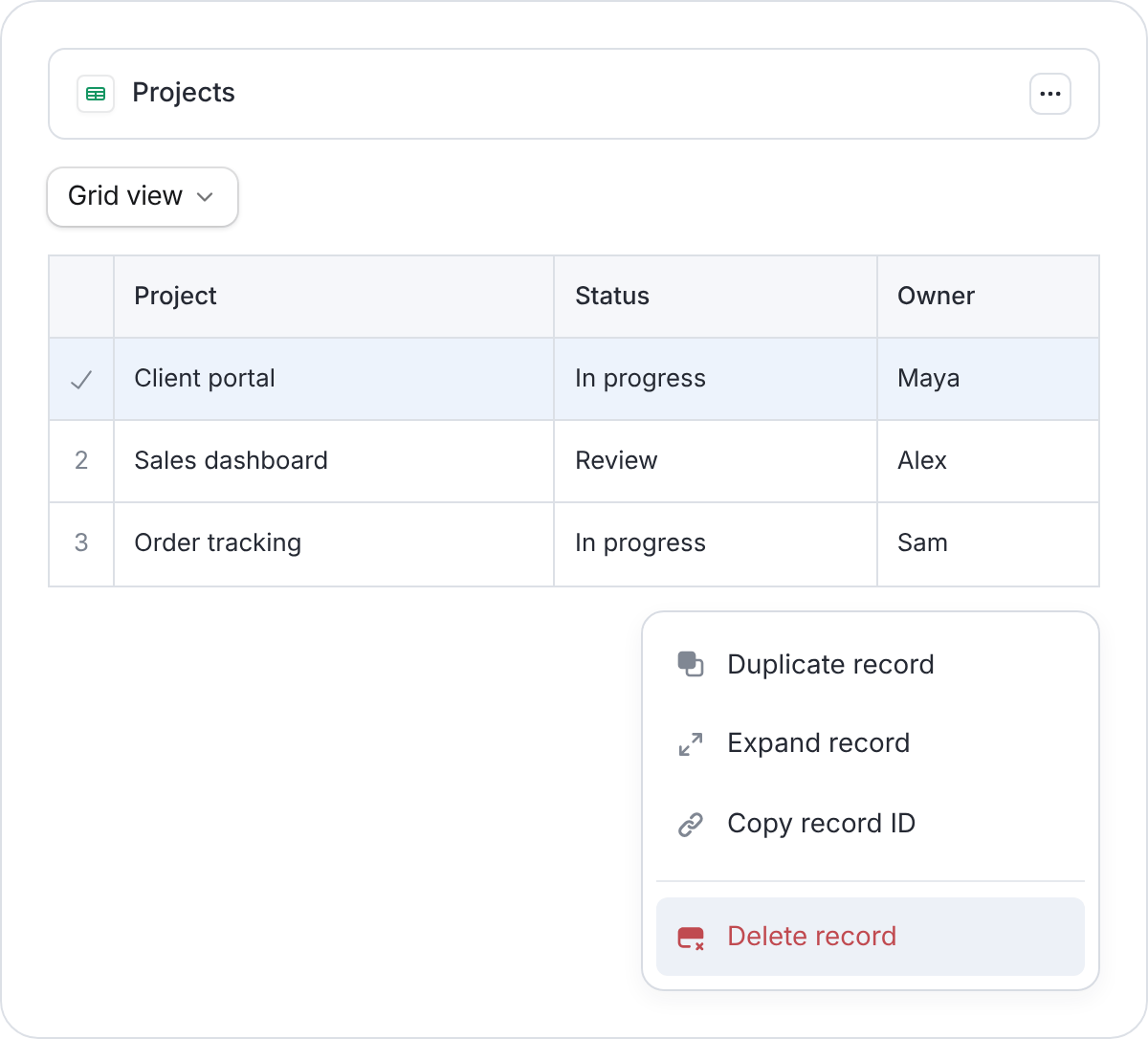
Delete record removes the entire row.
Bulk delete records
- Drag across cells in the rows you want to remove.
- Right-click the selection and choose Delete [number] records.
- Check the count, then confirm Delete.
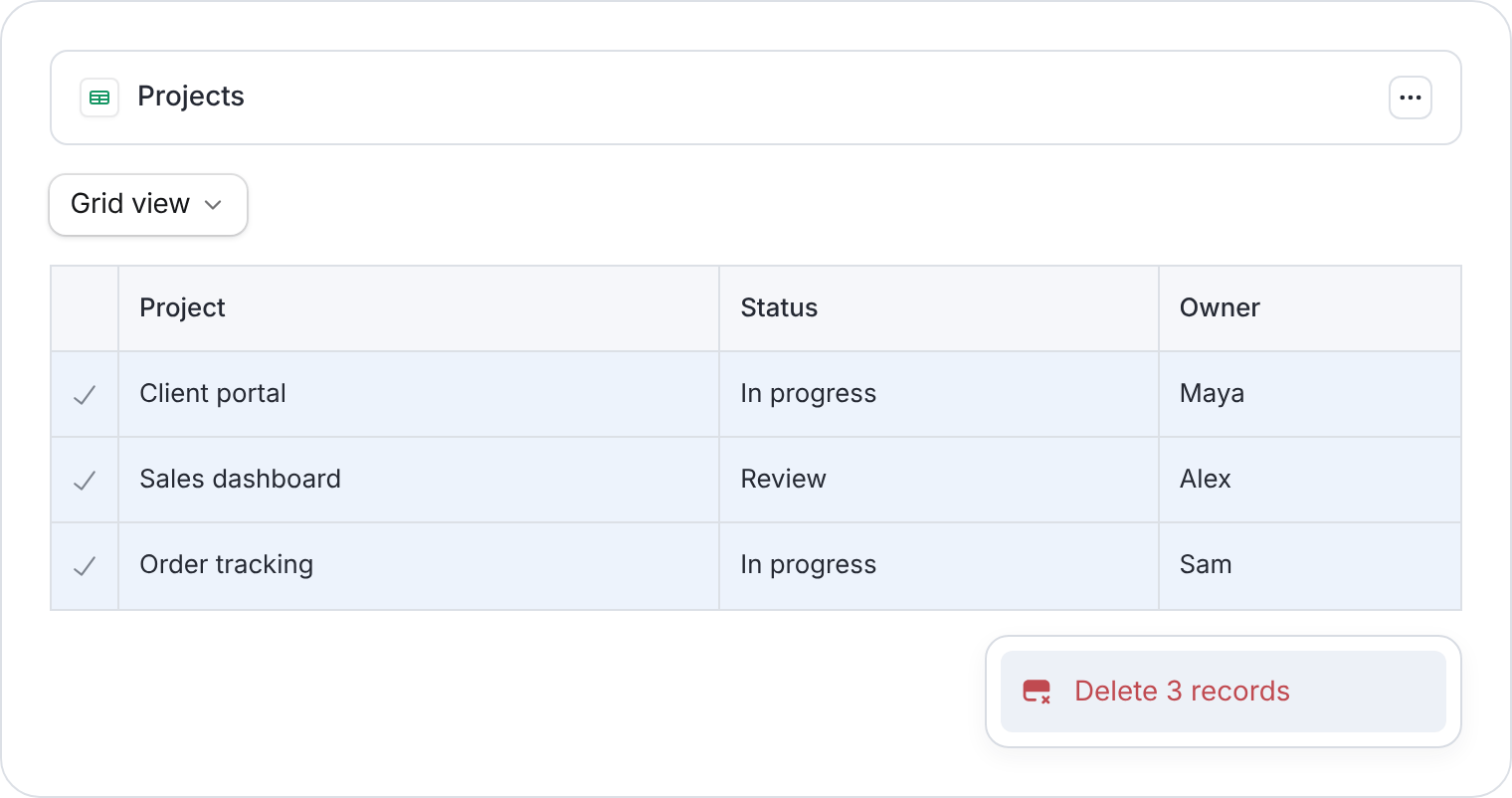
Check the selected rows and the count before confirming.
Delete table
Open … (Table options) beside the table’s name at the top, then choose Delete table and confirm. This removes the table, its fields, and its records. Check any apps, forms, or linked tables that rely on it first.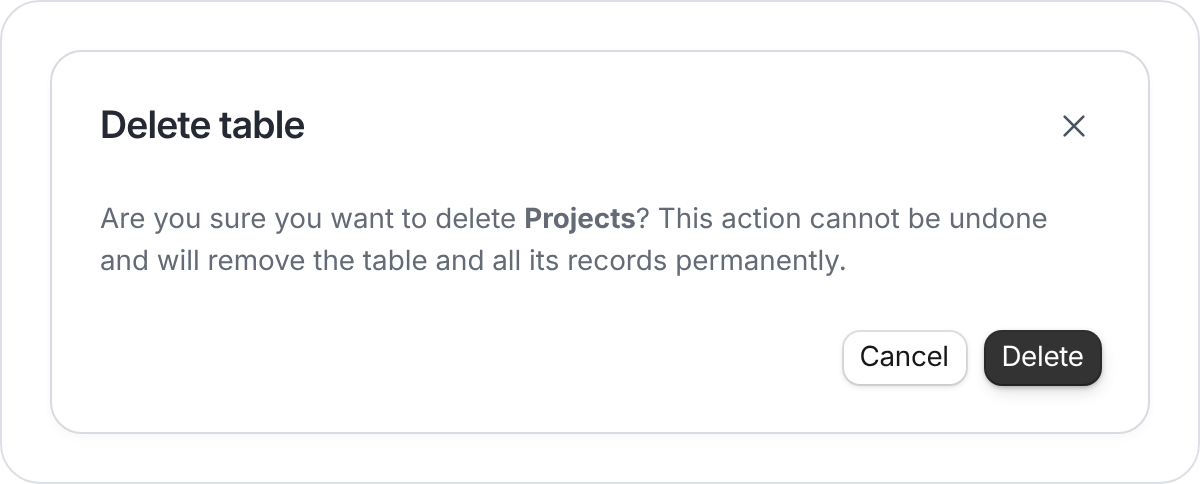
Check the table name before deleting it.
Delete database
In a new workspace, the database belongs to the workspace. Open the workspace’s Overview, select … (Workspace options) beside its heading, and choose Move to trash. This also trashes its apps and forms. For a standalone database in a classic workspace, use the database’s … → Move to trash menu.Restore deleted databases
Return to organization home by opening the workspace name in the sidebar and selecting All workspaces. Open Trash in the organization sidebar. Find the workspace or database and select Restore.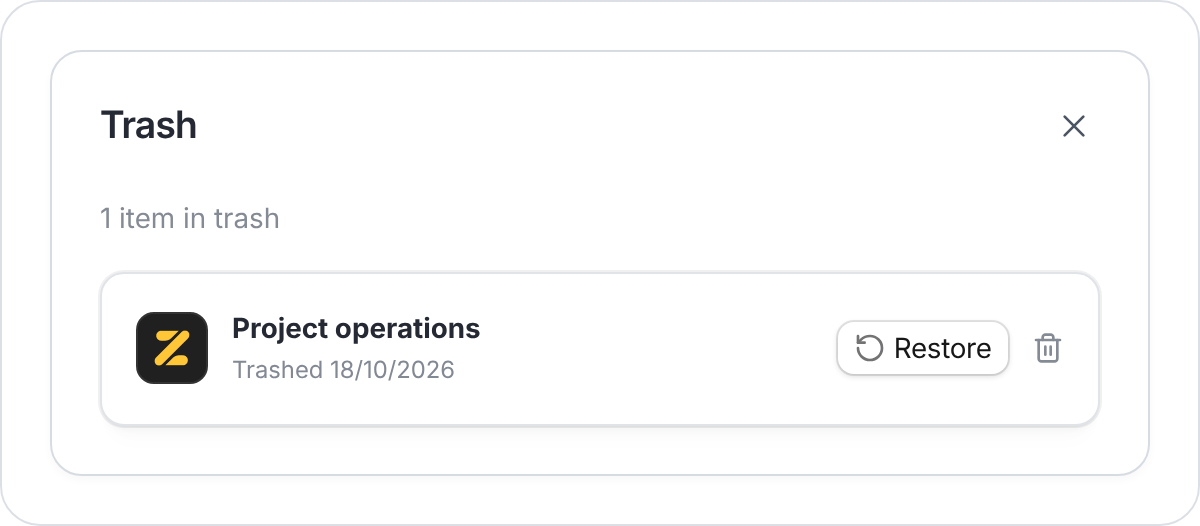
Restore a trashed workspace or database from Home.