

How it works
Let users schedule calls on your Google Calendar by linking it to your Zite app either as a button or an embed. This is useful for meetings, appointments, and other events.How to insert your booking page
1
Connect to Google Calendar
In the chat box, request your app to be integrated with Google Calendar or click the 
plug icon on the top right. Then, sign in to your Google account.plus icon + in the chat box to connect.2
Enter your use case
Describe how you’d like to use Google Calendar in your app. In this example, we’ll let users book a call after seeing their generated quote.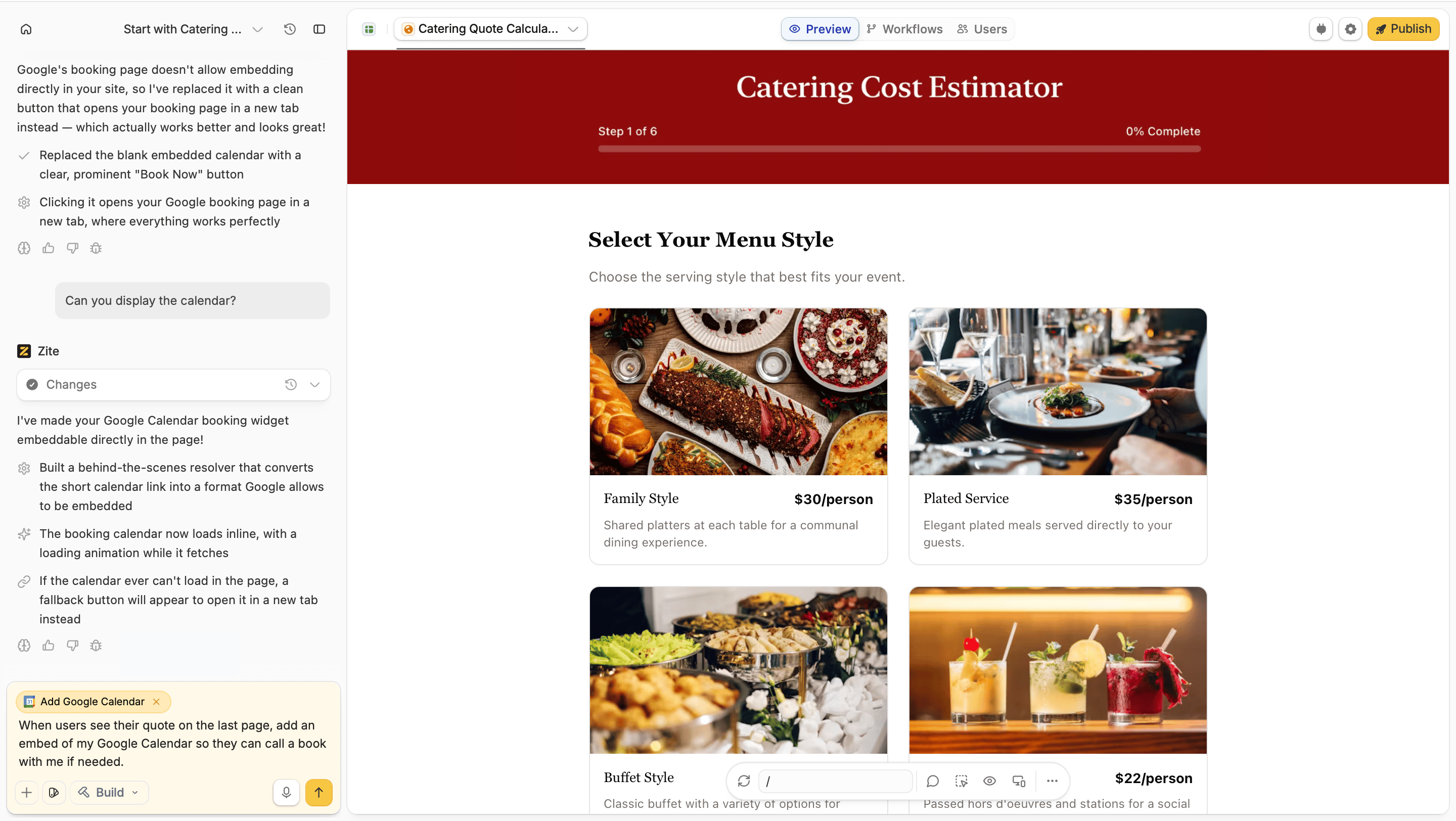
3
Choose a calendar embed type
Select whether you’d like to:A. Embed your calendar - display a calendar where visitors can see your availability and choose a time slotB. Add a button - link to your calendar through a button that opens your calendar booking page in a new tab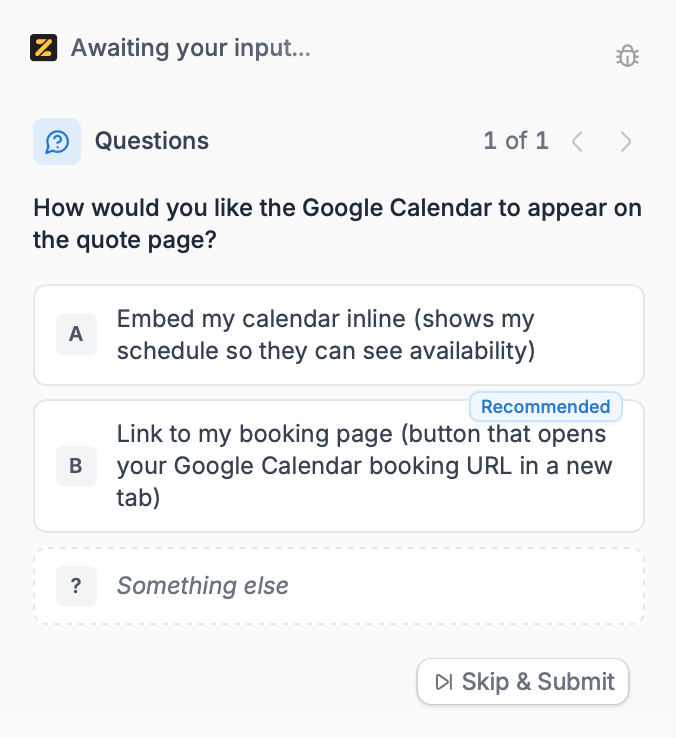
4
Deploy and share
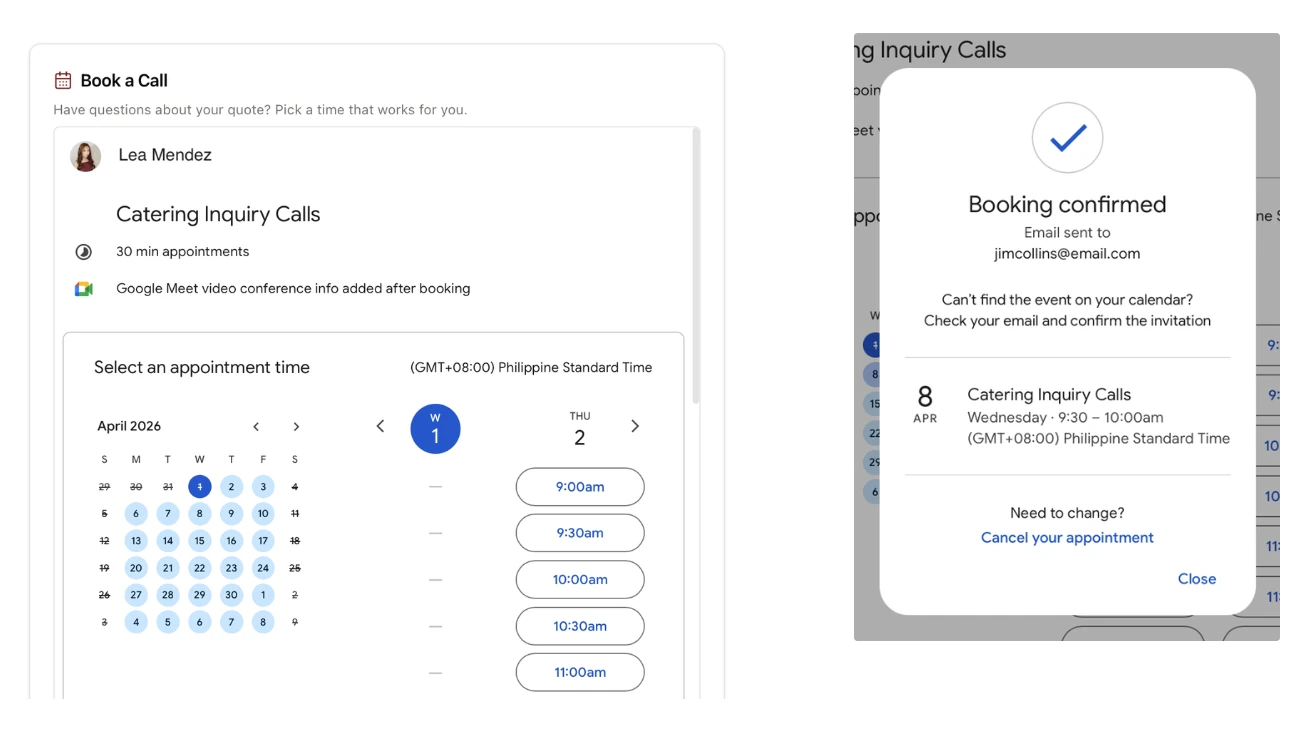
Use a custom booking page
If you don’t want to use the standard Google Calendar design, you can create a branded Fillout scheduling form instead. Then link the form to your Zite app so others can book appointments with your custom design.Common use cases
With a Google Calendar connection, you create apps like:- Product Sites: Let potential customers book demo calls
- Team Meetings: Let team members book meeting slots without back-and-forth emails
- Bookings or Appointments: Allow others to book appointments like patients and etc.
- Interview Scheduling: Let candidates pick available interview slots
- Consultations: Let clients schedule virtual consults