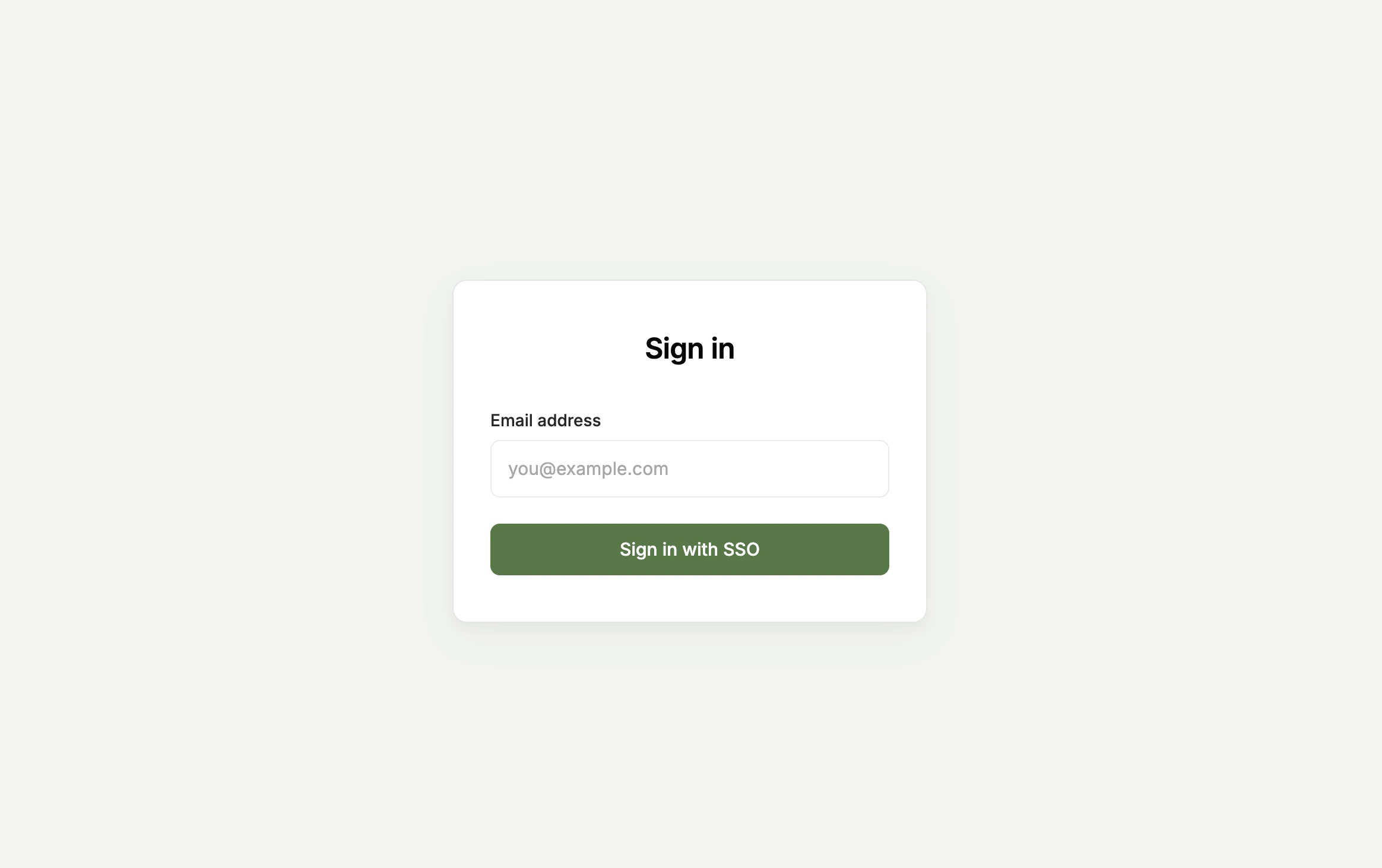
This page covers SSO for an app you built. To set up SSO for signing in to Zite itself, see SAML SSO for your Zite account.
Overview
You can require users to authenticate through your organization’s Single Sign-On (SSO) identity provider — such as Okta, Azure AD, or Google Workspace — before accessing your Zite app. SSO gives you centralized control over who can access your app, and allows you to pull in custom attributes like department, role, or cost center from your identity provider.App SSO is available on the Enterprise Plan. Learn more here.
- Your organization must be on Zite’s Enterprise Plan
- Your SSO provider must be configured with Zite
- Your app must be shared to the web with login added
Enable SSO
1
Open authentication settings
Click
Users on the top nav bar, then switch to Authentication.2
Enable SSO
Under Sign-in method, toggle on
Sign in with SSO.When SSO is enabled, Magic Link and Google Sign-In are automatically disabled. Only one authentication method can be active at a time.
3
Choose who can sign up
Under Who can sign up?, choose who’s allowed to create an account. See Choose who can sign up for what each option does.
4
Publish
Click
Publish in the upper right. SSO applies to real visitors once the app is published.Custom attributes
When SSO is enabled, custom attributes — such as department, role, or cost center — are automatically discovered from your identity provider. To use them in your app, tick the checkbox, then clickSave.
At least one user must have signed in to a Zite app via SSO for attributes to appear.
Click to re-scan for new attributes after more users have signed in.
Using attributes in your app
Once enabled, custom attributes are available on the authenticated user object. For example, if you enable department, your app can access the user’s department to personalize content or control feature access.
The Zite Agent also understands these attributes — you can ask it to build features like “show different content based on the user’s department”.
SSO attributes (including custom attributes) are refreshed every time a user signs in. If a user’s department changes in your identity provider, the updated value will appear the next time they log in to the app.
How SSO login works for end users
On a published Zite app, users enter their work email to sign in, authenticate via your identity provider (e.g., Okta or Azure AD), and are redirected back to the app logged in.