

Brand kits are shared within your organization, but applied per app. Choosing one doesn’t change every app in a workspace.
Build your brand kit
Older apps may show Theme setup required in Design mode. Before creating or applying a kit there, select Set up theme and wait for the AI update to finish. This uses AI credits. Then reopen Design mode → Theme.
1
Open brand setup
In an app’s editor, select Design mode below the chat box and open Theme. For your first kit, select Create brand kit. If your organization already has a kit, select the + beside Your Brands (New brand kit).You can also create and manage kits from organization home: open the organization name at the top left, then Settings → Brand kit. From inside a workspace, open its name and select All workspaces first.
2
Import or create manually
Enter your business website and select Import my brand to fill in your colors, fonts, and logo. Review the imported details before saving.Choose Create manually if you don’t have a website or want to add everything yourself.
3
Review and save
Work through Basics, Colors, Font & Style, and Guidelines, then select Create Brand Kit.
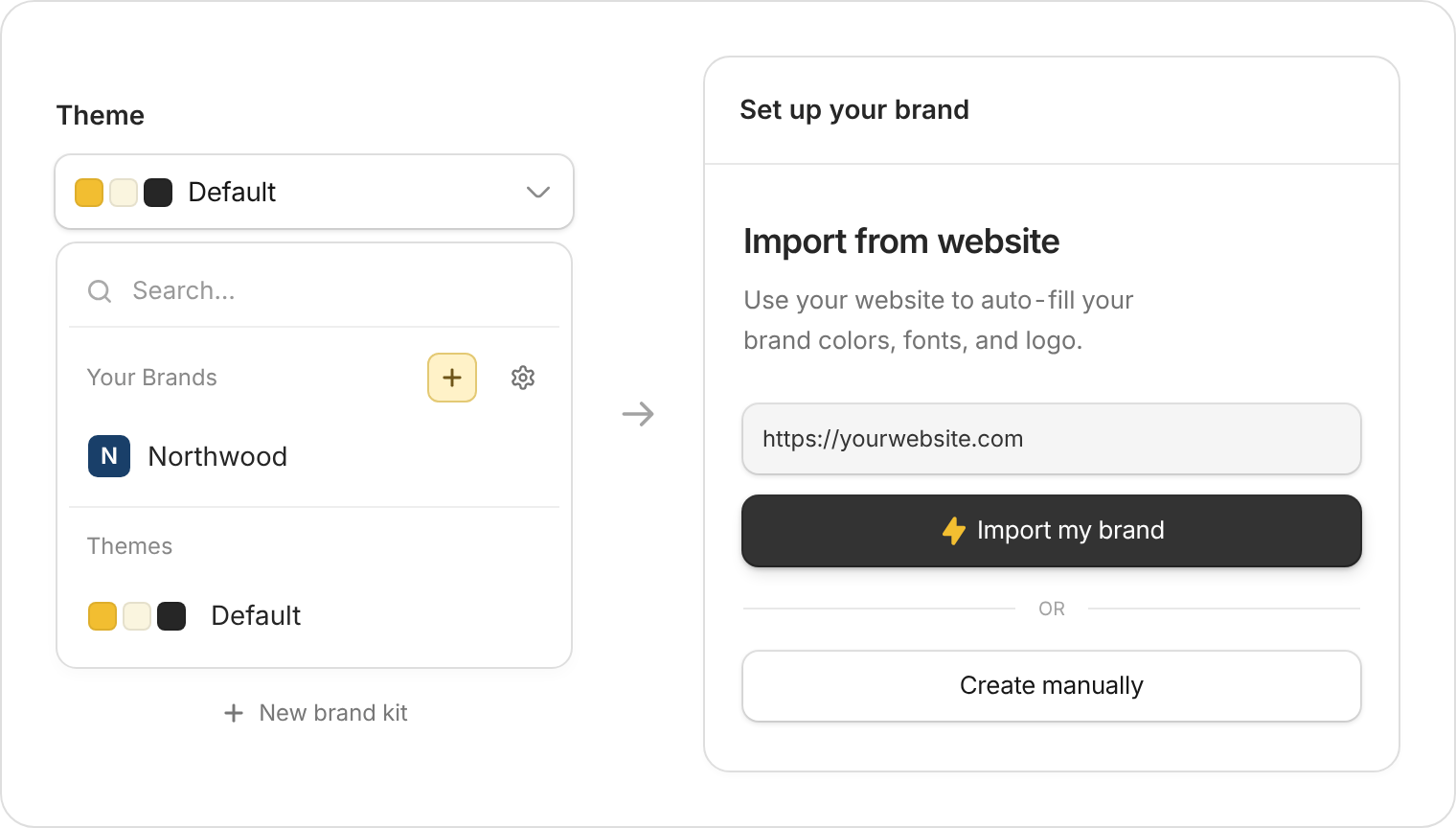
Open Theme to create a kit, then import your website or start manually.
What is a brand kit?
For example, a client portal’s guidelines could say:
Use plain, friendly language. Call people “clients,” not “users.” Keep pages uncluttered and make the next action easy to find.
Free, Pro, and Business organizations can have one brand kit. Team and Enterprise include unlimited brand kits.
Apply brand kit to an existing app
- Open the app and select Design mode → Theme.
- Choose your kit under Your Brands and check the preview.
- Select Save All and wait for saving to finish. Zite returns you to chat automatically.
- Select Publish to update the version people use.
Edit an existing brand kit
Go to Settings → Brand kit, open the kit, and select Edit brand kit. Make your changes and select Save changes. To bring updated colors and styling into an existing app, select the kit again in Theme, then Save All and Publish.Keep colors readable
Zite adjusts text, chart colors, and keyboard-focus indicators for contrast while preserving your main brand colors. Check the result in your app, especially after individual color changes. Use the Accessibility agent for a wider review of contrast and keyboard use.Where does my login-screen logo come from?
Where does my login-screen logo come from?
Add your logo to a brand kit and apply that kit to the app. Where login-screen customization is available, open App settings → Login → Screen to show it. See Customize the login screen for availability and steps.