

Add login
Open Settings → Login in the app editor. For a public app without login, select Add login and let Zite finish the change. Under Sign-in, choose how people can log in: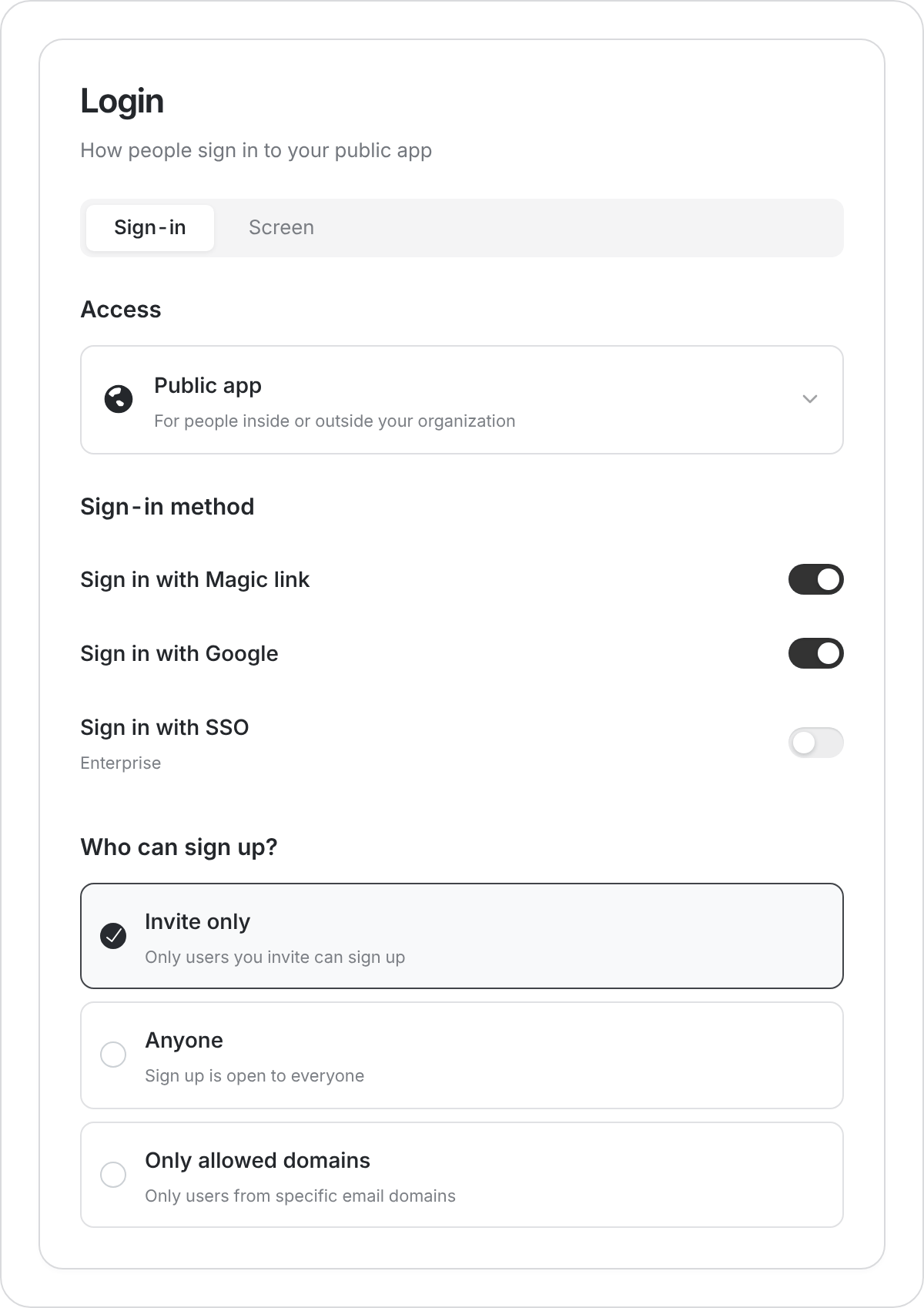
Example setup for an invite-only client portal.
Choose who can sign up
Check the selected option rather than assuming the default. New and migrated apps can have different settings. Save your changes, then publish.
Custom access rules can override these settings. If the app has them, review those rules too.
Set the session length
Under Sessions, choose how long people stay signed in after they stop using the app. The default for public apps is 1 year. Choose a preset or Custom… for 1–365 days, then save and publish.Customize the login screen
On Business and above, open Login → Screen to customize the logo, titles, and supporting text. Save and publish the changes. Invitation and sign-in emails are managed separately in Settings → Notifications.Test sign-in before you publish
Use Preview as user to review what someone can see and do. It does not replace testing the real sign-in flow. After publishing, open the live link in a private browser window and check:- An allowed person can sign in and complete their main task.
- An uninvited person is refused if the app is invite-only.
- Each user sees the right records, using the roles and permissions you set.