

Restore a version
1
Open history
Open your app and select Version history beside the chat selector. You can also open a change from its message in the chat.
2
Find the version
Select an earlier entry in the timeline. Use Preview to check the app at that point. Check the date and description before restoring.
3
Restore and test
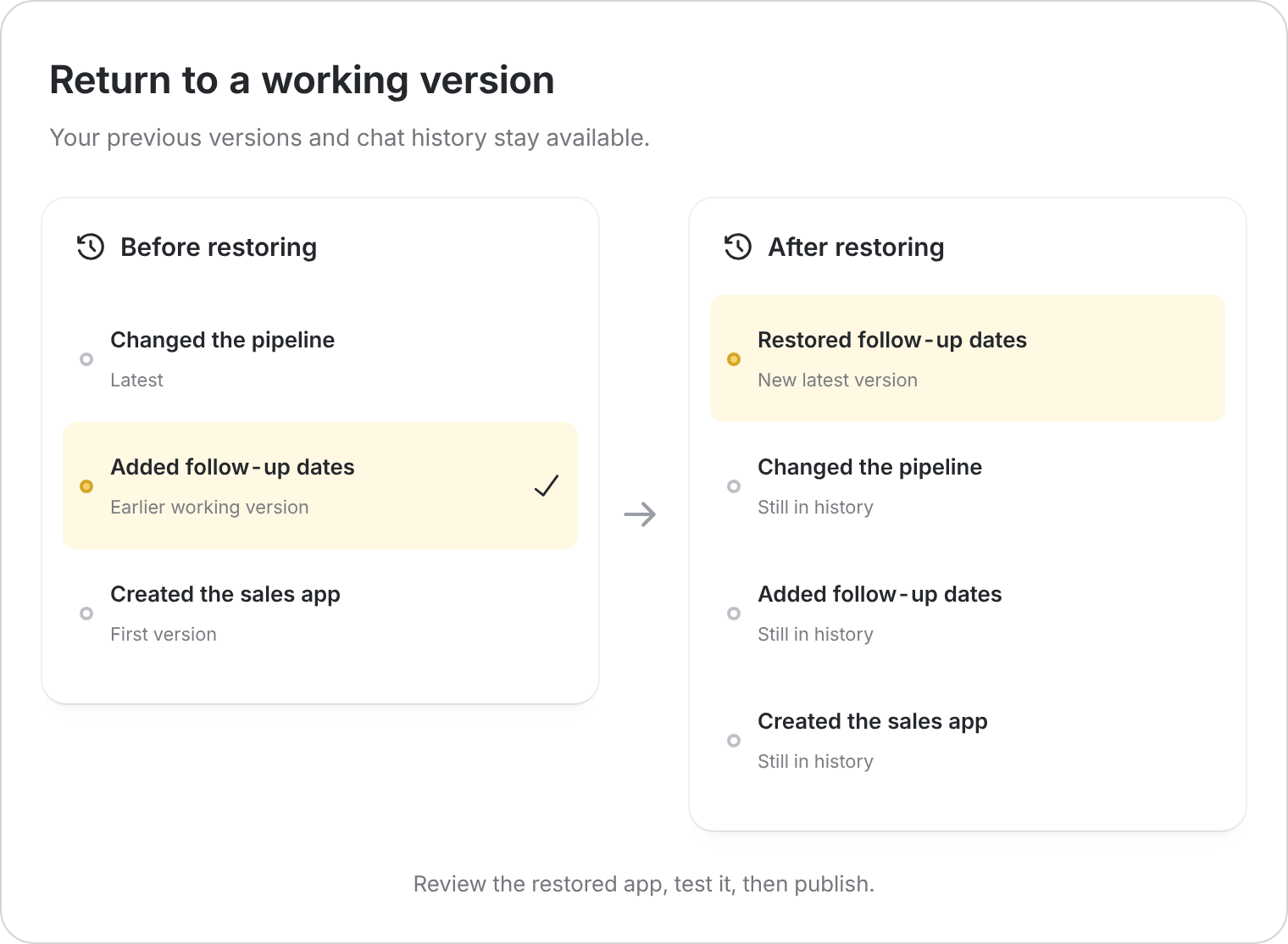
Select Restore, then confirm Yes, restore. Zite creates a new version using the earlier state and preserves your chat history.Test the main tasks in the restored app. Publish when you’re ready to update the version people use.
What does a restore affect?
- App changes: Restores the selected app’s saved design and behavior. Related shared changes can affect other apps in the workspace, so test those too.
- Chat history: Your conversations stay available.
- Live app: Review and publish the restored version when it is ready.
- Business records: This is not a database backup. Don’t use app history to recover deleted or edited records.
Restoring adds a new history entry. It does not erase the versions that came after the one you selected.