

Choose where to save it
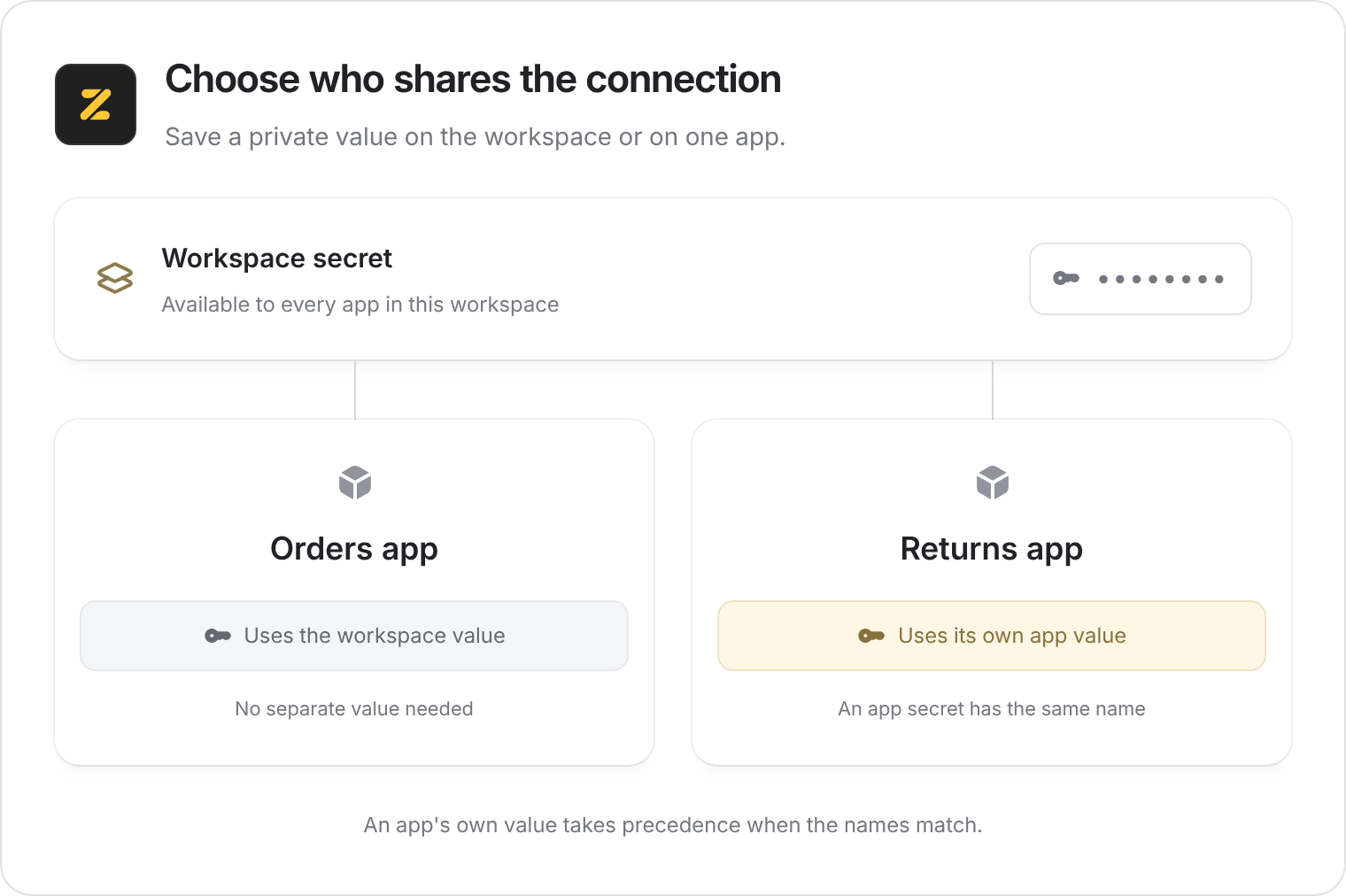
Example: share a connection across a workspace, or give one app its own value.
Add a secret
1
Open Secrets
For one app: Open the editor, select Settings, then Secrets.For the workspace: Select Settings near the bottom of the workspace sidebar, then Secrets. This is separate from the individual app’s settings.
2
Enter the details
Select Add Secret. Enter a name in Key, paste the private value into Value, and add an optional description of what it is for.Select Add Secret to save it. Keep the private value in this form rather than pasting it into chat or a database field.
3
Tell Zite how to use it
Refer to the secret by name and explain the task. For example, “Use the shipping service secret to look up delivery progress for an order.”Test the task in your app to check that the connection works.
Who can manage secrets?
People with edit access to the app or workspace can add, change, reveal, and delete its secrets. Admins can manage them too. People with use-only access cannot manage secrets. The list hides values until an editor chooses to reveal one. Only give edit access to people you trust with those connections.Shared values and copies
- Same name in both places: The app uses its own secret instead of the workspace value.
- Duplicate a workspace: The copy includes its shared secrets and the secrets belonging to the copied apps. Review them before giving new people edit access.
- Zite-managed values: Some values, such as webhook tokens, are managed separately and aren’t editable here.