

Migration creates a separate copy. Your Airtable base stays unchanged, and later edits in Airtable do not automatically update the Zite copy.
Before you start
- Make sure you can access the Airtable base and share it with Zite.
- Check that your Zite plan has room for a new workspace.
- Note the interfaces, forms, and automations your team needs after the move.
Migrate an Airtable base
1
Connect and choose your base
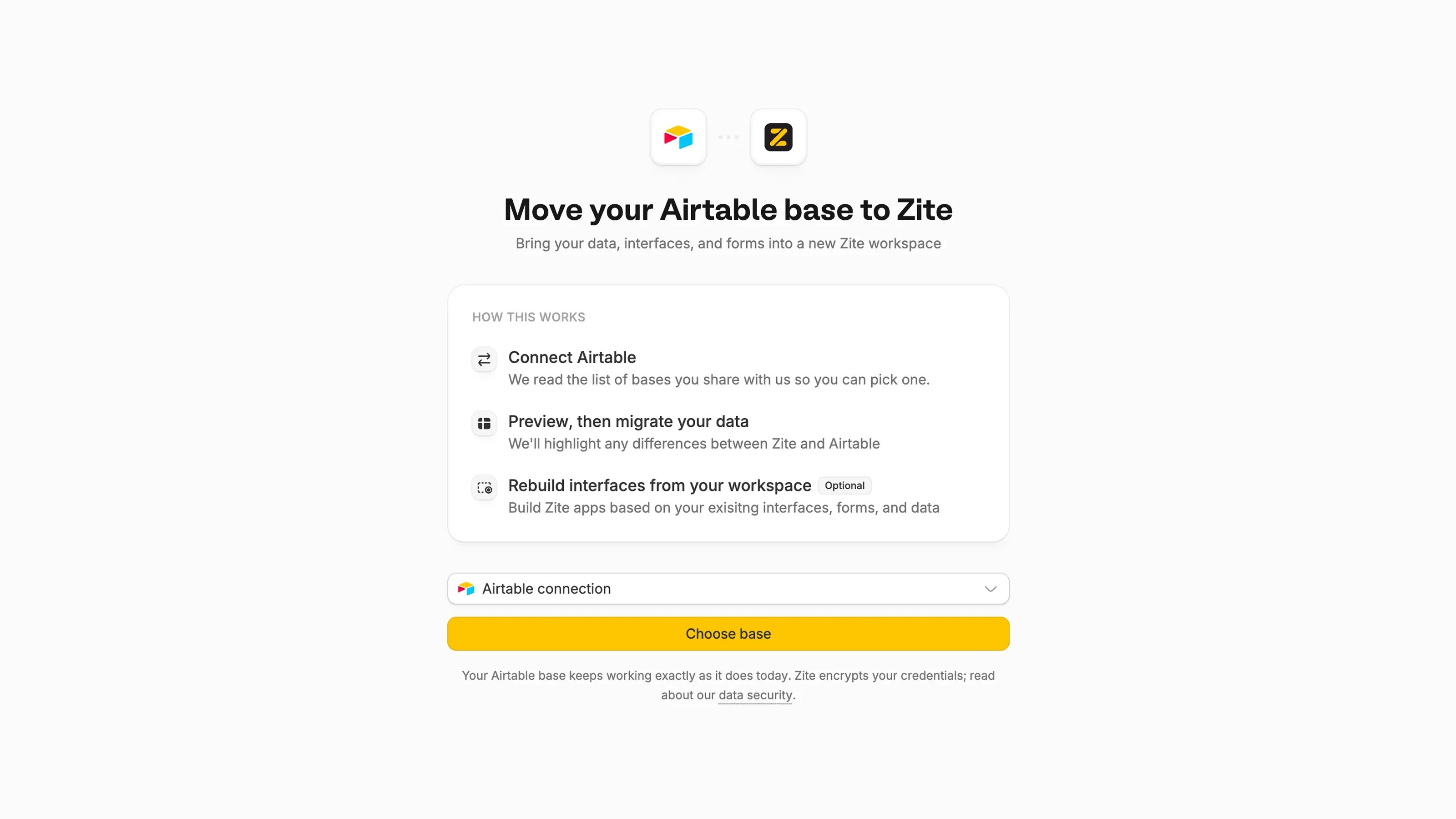
Open the Airtable migrator. Connect Airtable or select an existing connection, then choose Choose base.Select the base and choose Continue. If it is missing, check that the connected account has shared that base with Zite.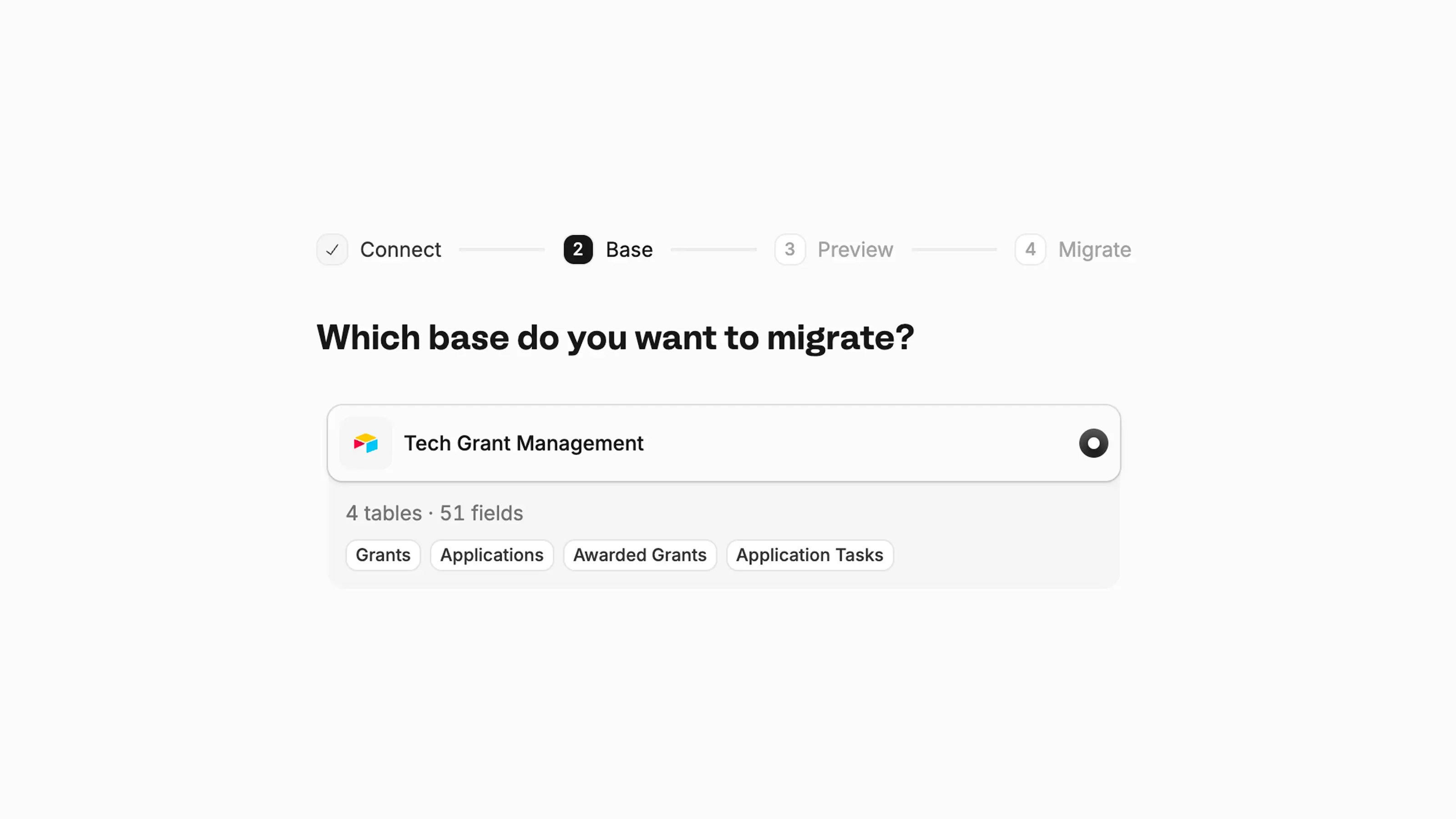
2
Set up rollups, if asked
If Zite needs help with a rollup calculation, describe what it does. For example, “Add up the value of all linked deals.”Zite tries to recreate it as a live calculation. If you skip this or the calculation can’t be recreated, its current values are copied as fixed values instead.
3
Review the preview
Here’s what we’ll bring across lists the tables, fields, and exceptions. Open a table to see the details.Pay attention to fields that change behavior, keep only their current values, or won’t be imported.
4
Start the migration
Select Migrate this base. Zite creates the workspace and copies the records in the background.Once the import starts, you can close the tab. Open the workspace to follow its progress.
What needs review
Recreate your interfaces and workflows
Choose Airtable Interfaces in the migration hub. Record a walkthrough or add screenshots, explain what each screen does, and choose the workspace containing your imported data.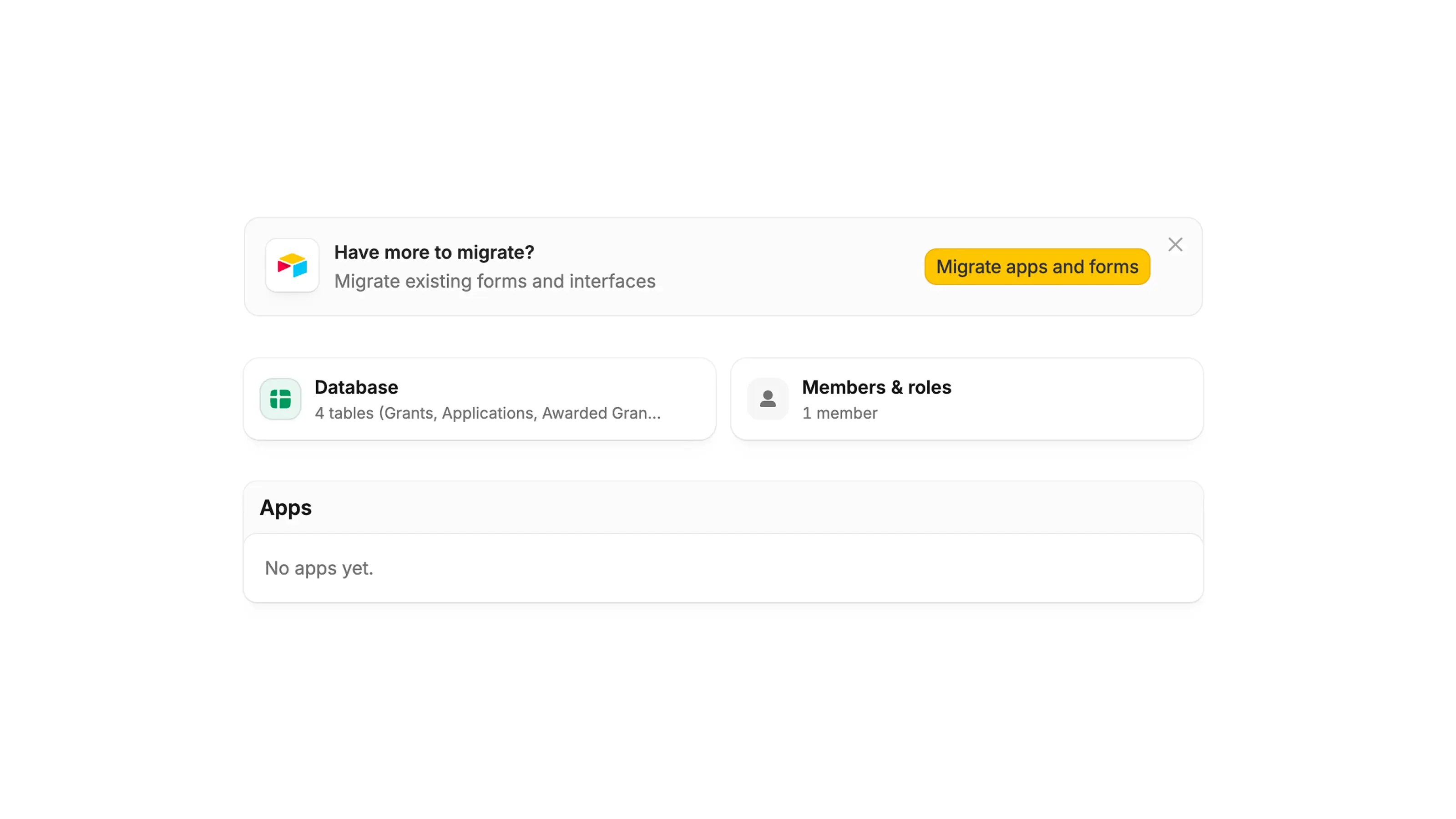
When a deal changes to Won, create an onboarding task linked to that customer and notify the account owner.Use Workflows to rebuild and test that process in Zite. Check the result with real examples before relying on it.
Import in the background
Progress appears on the import screen and the workspace’s Import in progress notice. Records may still be arriving when you first open the workspace.- Import stopped? Use Resume or Resume import where shown.
- Airtable access expired? Choose Reconnect Airtable, then continue.
- Need to end the import? Use the X on its workspace home card and confirm. Data already copied stays in the workspace, but you can’t resume that import.
After the migration
Before switching your team over:- Compare record counts and sample records in both systems.
- Test linked records, calculations, attachments, forms, and rebuilt workflows.
- Check app access, invite teammates, and publish when ready.
- Decide how to bring across any Airtable changes made during the move.