

These are AI tasks and use credits. Choose the review that fits your goal; you don’t need to run all three.
Start an improvement pass
- Open the app you want to improve.
- Select + below the chat box, then Improve my app.
- Choose Review agent, Design agent, or Accessibility agent.
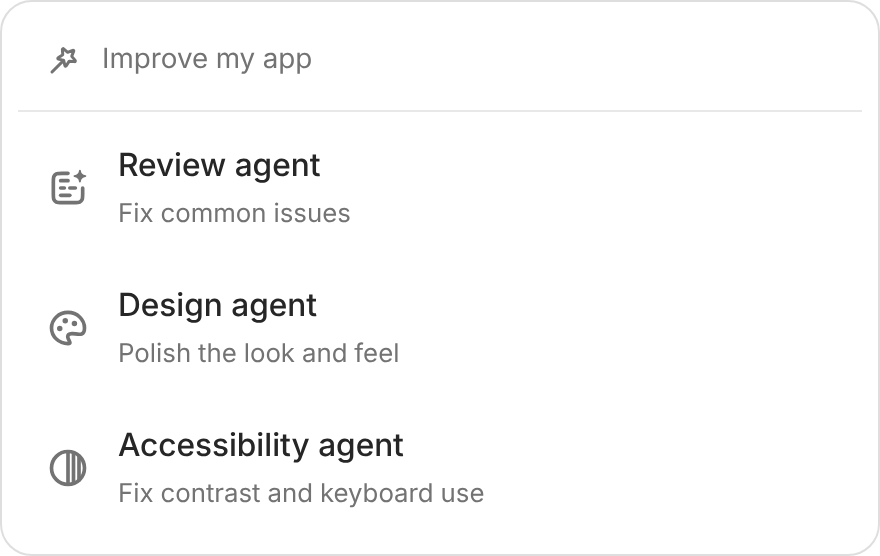
Choose the review that matches what you want to improve.
Review agent
Choose this when the system needs a general check. It looks for issues such as:- Broken tasks: Buttons, links, filters, or forms that don’t work as expected.
- Access and connections: Sign-in behaviour or connected tools that don’t match the app’s setup.
- Unfinished screens: Missing loading messages, empty states, or unclear actions.
Design agent
Use this to polish a working app’s spacing, colors, tables, and controls.- Wait while it explores the app and captures screens.
- When Design review ready appears above the chat box, inspect the captured screens.
- Select Improve design to start applying improvements, or Dismiss to leave them unapplied.
If User Sync is enabled, Designer asks before continuing: signing in to preview the app may add a test user with your email to the synced users table.
Accessibility agent
Choose this to check text contrast, keyboard navigation, and visible focus (the indicator showing which control is selected). It looks for verified issues and aims to fix them while preserving the design. An automated pass can miss issues. Test the main tasks with a keyboard as well as a mouse.After the pass
- Read the summary: Check what changed and anything that still needs attention.
- Try real tasks: Submit a form, use filters, and check sign-in and access for the people who use the system.
- Check smaller screens: Confirm the changed pages work on mobile.
- Publish when ready: Update the version your team or clients use after testing.