

What uses credits?
Workflow runs and storage have their own allowances. A workflow that uses Zite-provided AI can use both credits and a workflow run. See App Usage.
AI in an app that uses your own provider API key does not use Zite credits. That usage is billed by the provider whose key you connect.
Building through your own AI tool uses that tool’s allowance instead of Zite credits. Plan requirements still apply.
Why do some requests use more?
Changing a button label usually takes less AI work than building a customer portal with sign-in, records, and notifications.- More to read: A larger system or longer conversation gives the AI more information to process.
- More to do: A broad request can require many changes and checks.
- Different models: Models use credits at different rates.
Check credit usage
- One response: Click the model icon (a small square) beneath an AI reply to see Credits used and the model.
- One app: Choose View app usage in that panel to see totals and message history.
- Your organization: Open Settings → Billing & usage. Check Credits used this period, then Show more for a breakdown. The information icon shows your reset date.
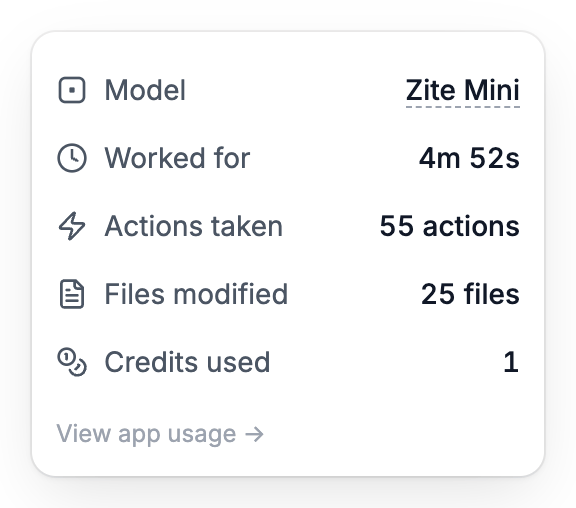
Open a response's usage panel to see its model and credit cost. Figures vary by request.
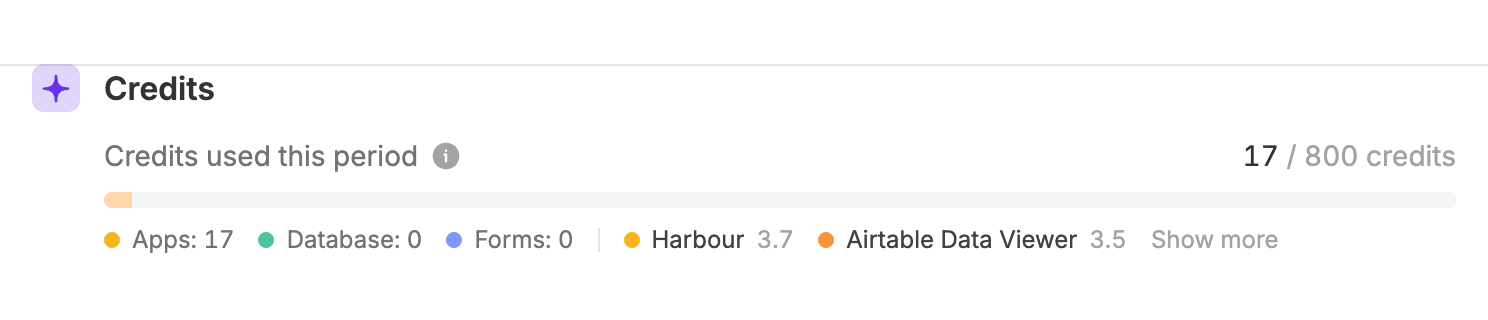
Billing & usage shows your organization's allowance and usage breakdown.
How credits reset
Your allowance renews automatically. Unused monthly credits do not roll over.Free has a separate daily message limit, which resets at midnight UTC. You need both messages and credits available. A new day does not replenish spent credits. Paid plans have no daily message limit.
Bonus credits for signing up with a work email
Eligible new organizations that sign up with a verified work email can earn 250 bonus credits. Organization admins can open the Earn credits card near the bottom of the sidebar to see the checklist; the card shows how many credits remain to earn. Each step earns 50 credits, once per organization:
Bonus credits expire at the end of the credit period in which you earn them. Check the checklist’s Use by date. They do not roll over or become part of your recurring monthly allowance.
Enrolled organizations on Free also receive 20 daily AI messages instead of 10 during the calendar month they sign up, measured in UTC. This is separate from the credit balance: you still need both messages and credits available.
The offer is for new organizations, not people joining an existing organization. Personal and student email addresses are excluded, and enrollment is limited to three organizations per company email domain. If the checklist is missing and you think you qualify, contact support@zite.com.
What if I run out?
- Wait for the reset, or open Billing & usage to choose a larger credit allowance.
- Building with AI pauses at your limit. AI in published apps that uses Zite’s own key pauses only once your organization is more than 50% over its credit allowance. Simply reaching or going slightly over the allowance does not pause that AI.
- Your own API key: AI that uses your own provider key does not use Zite credits and is not paused by this Zite credit threshold. Your provider’s limits still apply.
- Deleting an app does not restore credits. They pay for AI work already performed.
- Manage team spending: Admins on Team and Enterprise can set AI credit limits for each person.