

Choose the right access
Workspace editors and organization admins manage access through Users in the workspace sidebar. For login settings, open the individual app’s settings.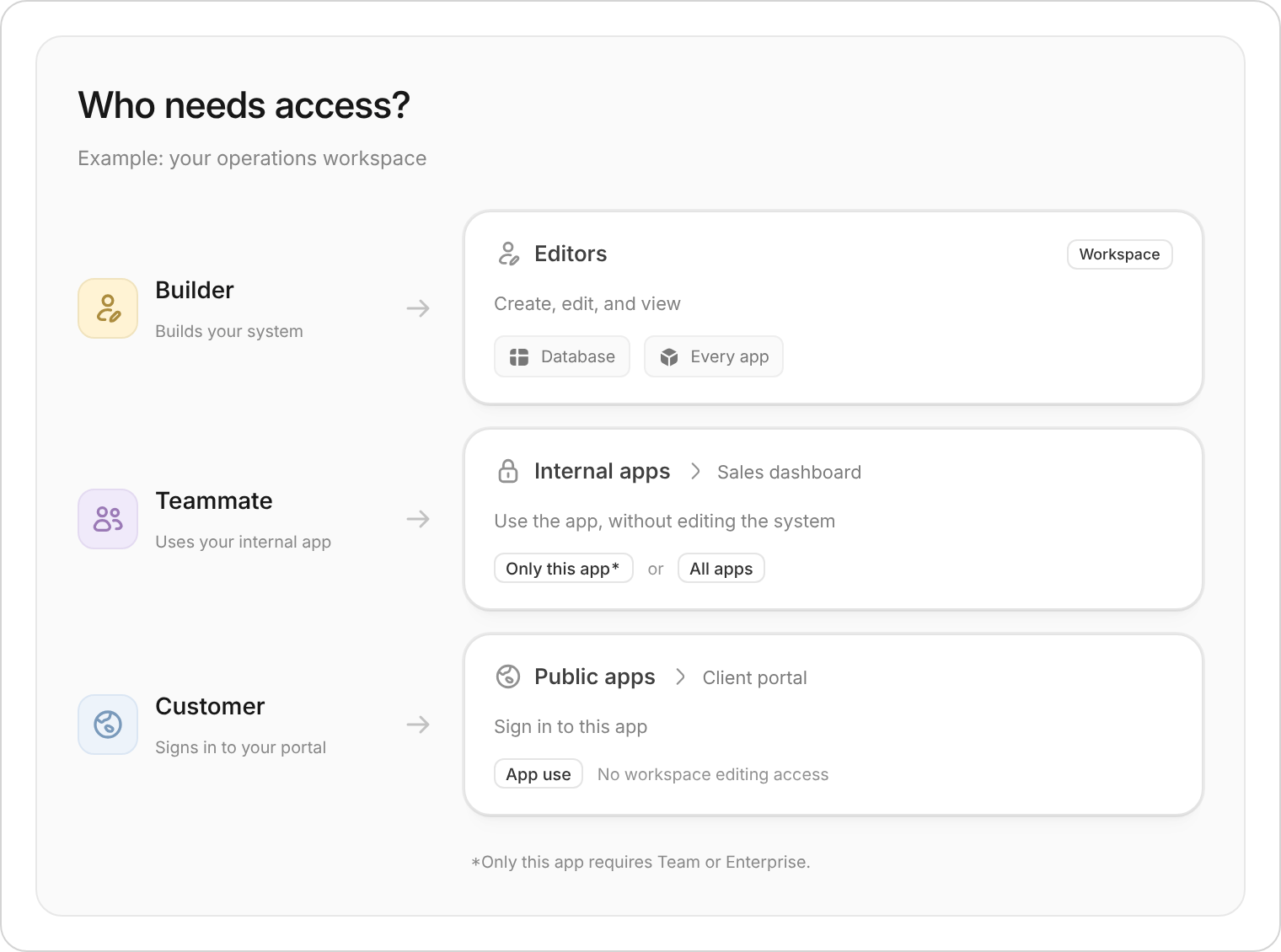
Give builders workspace access and app users the access they need to do their work.
Internal or public?
- Internal: people sign in with their Zite account. Your organization’s permissions decide who can use the app.
- Public: people outside your organization can use the app. You can still require login and limit sign-ups.
Public does not have to mean open to everyone. A client portal can be public with login required and sign-ups set to Invite only.
Access inside the system
Opening an app and seeing its records are separate decisions. Describe to Zite which records each person should see or change, then test those rules in the app. See user-specific data. Use user groups to grant organization members access together. Before sharing, test with a person who has the intended permissions. Your own administrator account can see more than a teammate or customer.FAQs
Can I limit access to a specific page or link?
Can I limit access to a specific page or link?
Access is set for the whole app, not per page or link. Internal apps are for members of your organization. Public apps can have open, disabled, or domain-restricted sign up, plus invites. People sign in with a magic link (an emailed sign-in link), Google, or SSO.To show different pages to different people, ask the AI to build that into your app.
Internal apps
Give your team access to an internal system.
Share to web
Publish a public app or client portal.
Authentication
Choose sign-in methods and sign-up rules.
Manage users
Invite people to the right workspace or app.