

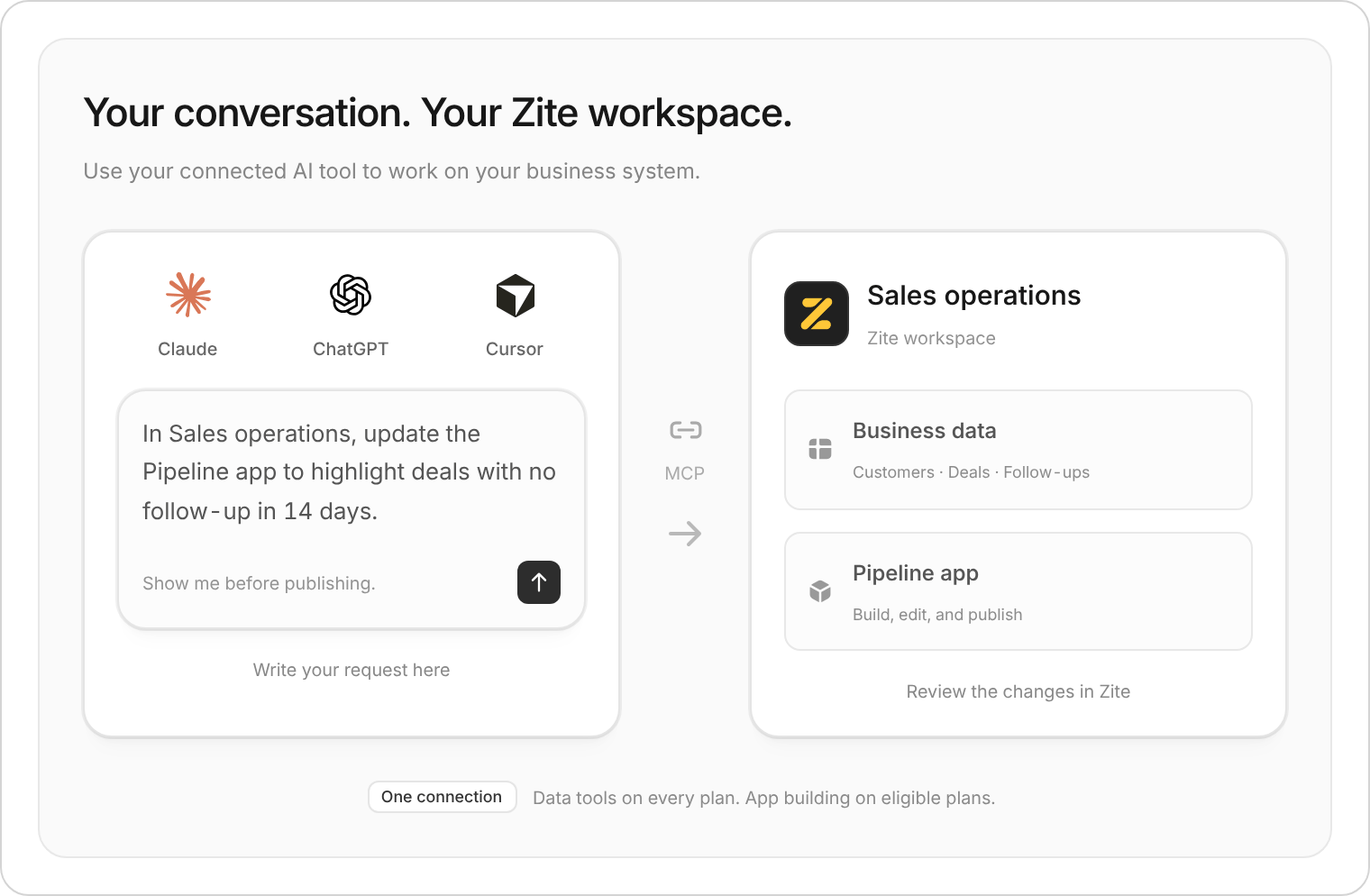
Write the request in your connected AI tool. The changes happen in your Zite workspace.
Connect your AI agent
You need workspace editing access to see Bring your own agent and to build or edit apps through MCP. See Managing users for how to give someone editing access.1
Open the connection dialog
Open Overview in the workspace sidebar. Scroll below the apps and automations to the panel with Overview and Context tabs. Select that panel’s Overview tab, then Bring your own agent.
2
Choose your AI tool
Follow the connection steps shown for your tool. Sign in to Zite and review the access you approve. Return to the dialog to check for Connected.
3
Start in your AI tool
Write your request in the connected tool’s chat. Name the workspace and app so the agent works on the right system.
In my Sales operations workspace, update the Pipeline app to highlight deals with no follow-up in 14 days. Show me the changes before publishing.Open the app in Zite to try the changes, then publish when you’re ready. For tool-specific instructions, see the connection guide. Connecting your own agent is separate from the workspace’s Chat button, which opens Zite’s built-in agent.
What can your agent do?
Building has a separate free trial for eligible organizations. Earlier Business pricing doesn’t include it. See plan availability.
Building through your own agent uses your AI tool’s usage allowance, not Zite AI credits. Remaining Zite credits don’t extend the build-tools trial. Generating results in AI fields and running AI features inside your apps can still use Zite credits.
Work with fields and attachments
Your connected agent can create and update AI fields. Describe the result you want, which fields it should use, and whether to use Mini, Pro, or Max. Review the field’s instructions before asking your agent to enable automatic generation. Enabling it can immediately generate results for existing records that have the required input information, using your organization’s AI credits. You can leave automatic generation off and generate results manually from the database instead. You can also ask the agent to attach a file to a database record. Name the workspace, table, record, and attachment field. For example:Attach the project brief PDF to the Brief field on the Website redesign record in our Projects table.Uploading a file from your computer requires an AI tool that supports local file uploads through MCP. If your tool cannot do that, upload it directly in Zite. This adds an attachment to the record; use Context for reference documents you want Zite’s agent to use while building.
Review your agent’s changes
App changes made through a connected agent appear in a separate activity feed in the Zite editor. Its title describes the first change, and entries show who made each change and which AI tool they used. Read the feed to review what changed, then try the app. Continue requests in your connected AI tool. To work with Zite’s built-in agent instead, select Start a new chat to edit in Zite. For scheduled workflows or workflows started by another tool, ask your agent to check the setup before saving. Zite reports invalid schedule or webhook settings to the agent and blocks saving changes that contain them. The agent needs to correct those settings and check again.Manage connected agents
Open Bring your own agent again to check a connection or follow Set up another device. Use the connected agent’s ••• → Disconnect to remove your connection across devices. Organization admins can select Manage all connections in the connection dialog to review people, workspace access, and recent use. You can also reach Authorized apps through Integrations in organization settings. These are separate from the workspace’s Integrations button, which connects tools used by your apps.- Each connection acts with the permissions of the person who connected it.
- Revoke one person’s access or disconnect an agent for everyone.
- Disconnect all removes all AI-agent connections in the organization; other authorized apps stay connected.