

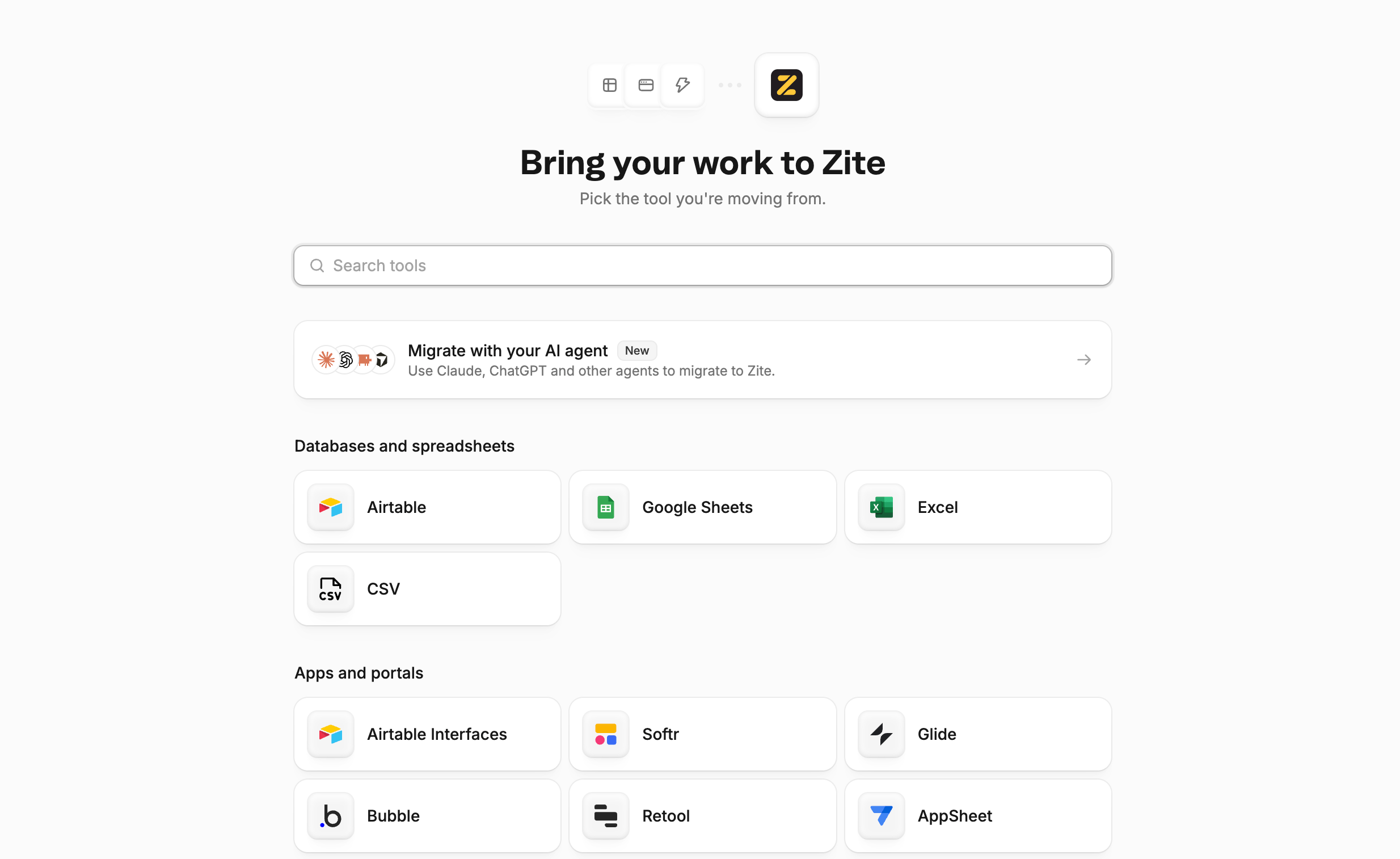
Pick the tool you're moving from in the Migration hub
Airtable, Google Sheets, Excel, and CSV imports from the hub always create a new workspace. A walkthrough rebuild can go into a new workspace or an existing workspace you can edit.
Open the migration hub
1
Sign in to Zite
Open app.zite.com and sign in. The hub is available after you log in.
2
Open Migrate
From Home, select
New, then Migrate. You can also choose Import data or Migrate from another tool on Home.Or go to app.zite.com/migrate. Direct links such as app.zite.com/migrate/airtable open that tool inside the same hub.3
Pick the tool you are leaving
Choose the tool that matches what you use today. Zite then starts the matching flow: connect and import, or capture a walkthrough so it can plan a rebuild.
Tools you can pick
Choose the closest match. If your tool is not listed, pick Something else.- Data: Airtable, Google Sheets, Excel, CSV
- Apps: Airtable Interfaces, Softr, Glide, Bubble, Retool, AppSheet, Power Apps, Notion, Base44, Lovable, Replit, Custom app
- Automations: Zapier, Make, n8n
- Work management: Smartsheet, Monday, SmartSuite, ClickUp, Jira, Asana, Trello, Linear
- CRM: Salesforce, HubSpot, Attio
- Something else when none of the names above fit
How Zite moves your work
Depending on the tool you pick, Zite will:- Airtable base: Connect your Airtable account, choose a base, and import it into a new Zite workspace. See Migrate from Airtable.
- Spreadsheets and files: Bring data from Google Sheets, Excel, or CSV into a new workspace. A CSV import can include up to 20 files, with one table per file. This is for new workspaces only.
- Walkthrough rebuild: When Zite cannot import that tool directly, add up to 8 screen recordings with narration, up to 20 screenshots with captions, or (for Zapier, Make, or n8n) an exported workflow file. Zite plans a rebuild of that app or automation into a new workspace or an existing workspace you can edit. If you reload the page before building, recordings are lost. Zite warns you first.
New workspace or existing workspace
Spreadsheet and Airtable imports from the hub do not add tables to a workspace you already have. You can add Airtable tables to an existing workspace from its database, and that import also runs in the background. To add CSV, Sheets, or Airtable data alongside apps that already exist, see Import data.