

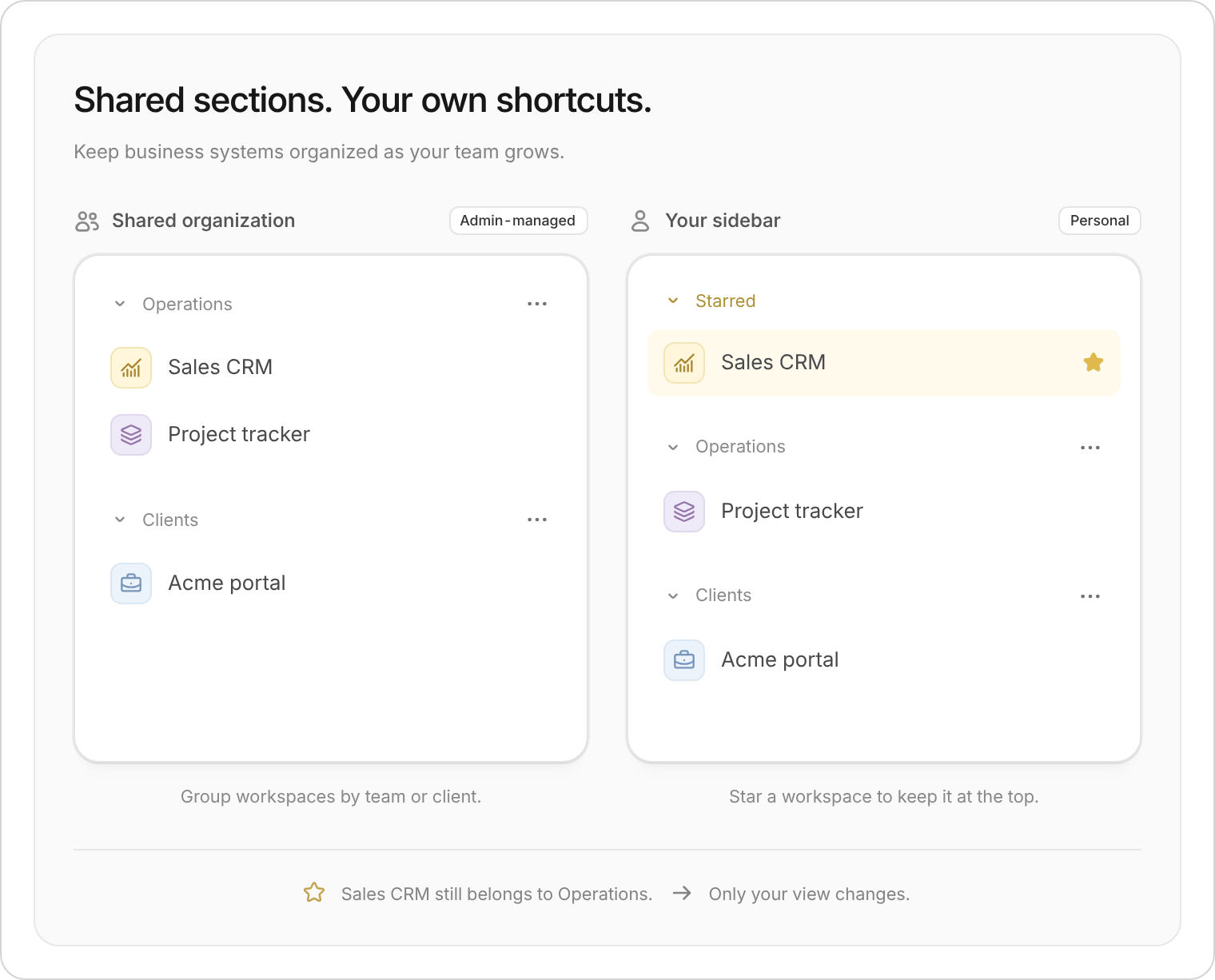
Shared sections organize the team’s workspaces. Stars personalize your own sidebar.
Organize workspaces into sections
Organization admins can create sections on the Team plan and above. Try names like Operations, Client projects, or Finance. If you’re inside a workspace, open its name at the top of the sidebar and select All workspaces. This returns you to the organization sidebar, where you manage sections and starred workspaces.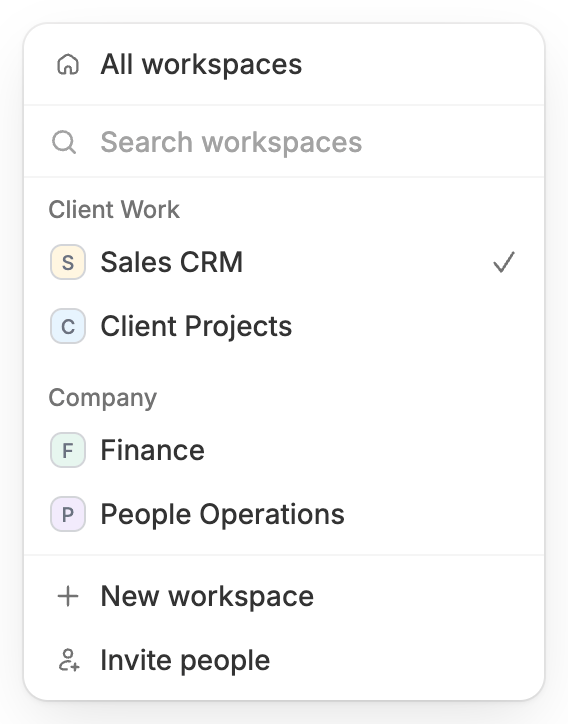
Use All workspaces to return to the organization sidebar.
1
Create a section
In the sidebar, click ••• next to Workspaces, then New section. Enter a name and click Continue.If your organization has no workspaces yet, click Create section instead and skip the next step.
2
Choose workspaces
Select the workspaces to include, then click Create section. The section is shared across your organization.
3
Manage your sections
Open ••• → Manage workspaces. Drag workspaces between sections. Use a section’s ••• menu to rename it or move the section up or down.
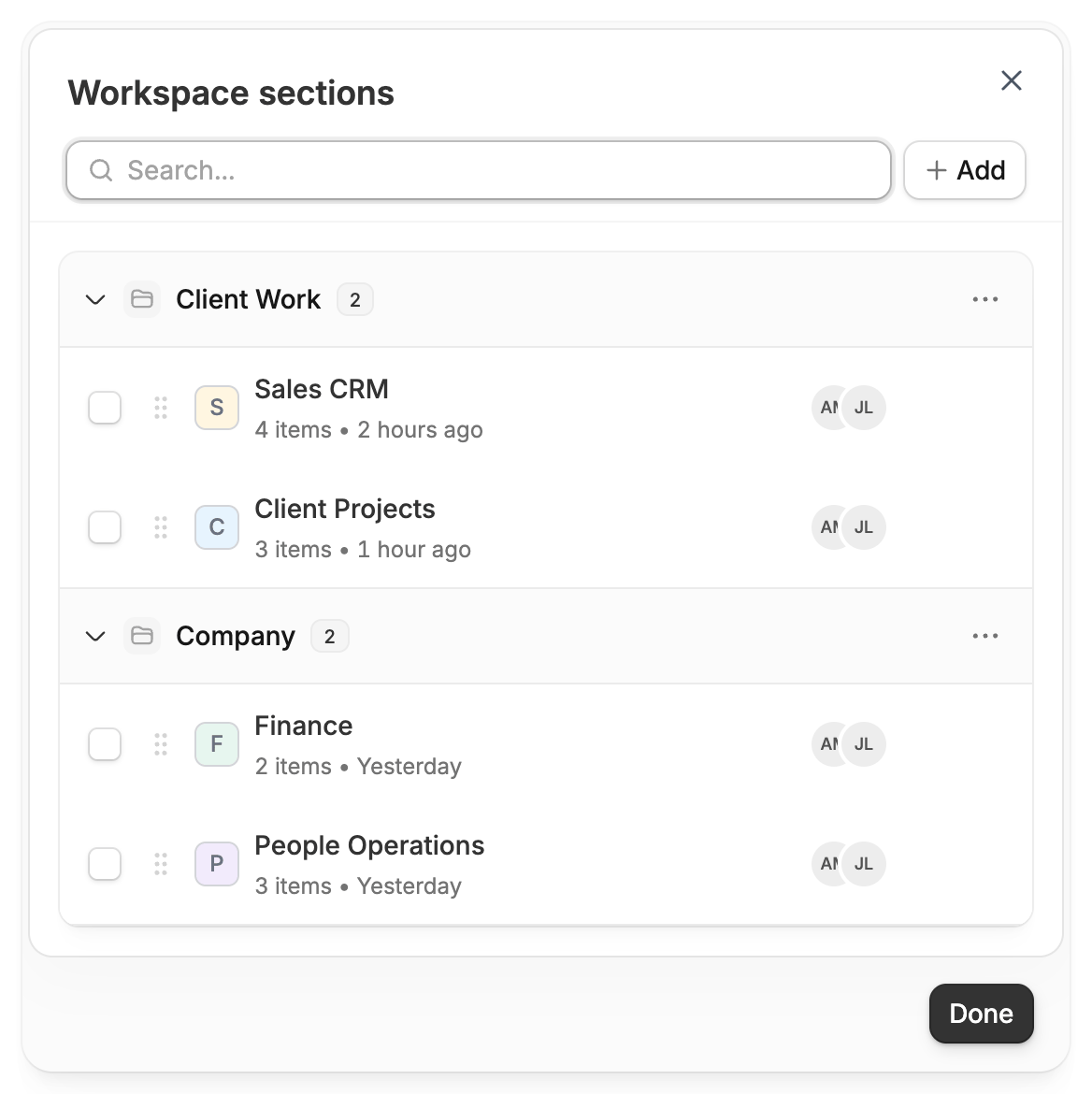
Manage workspaces opens the Workspace sections panel.
Sections organize the sidebar. They don’t combine workspaces, move apps or data between them, or change who has access.
Star and reorder workspaces
- Star a favorite: Open a workspace’s ••• menu and choose Star. It appears under Starred in your sidebar.
- Return it to its section: Choose Unstar. Starring doesn’t change its shared section.
- Set your own order: Drag workspaces within a section. Stars and workspace order are personal, so they don’t change anyone else’s sidebar.
Find apps, forms, and tables
Open a workspace’s Overview to browse its apps and automations. Select Forms in the sidebar to find its forms, or expand Apps to jump to an app.
To search beyond the current workspace, remove its name filter in Search. More about workspace search →
Moving workspaces between sections does not merge their databases or move apps between them. For an older workspace, see Migrate your workspaces. For forms, see Move a form into a workspace.
See app activity at a glance
See app activity at a glance
Hover over an app card’s avatars to see who’s editing. Your activity indicator also shows when Zite is waiting for your answer.
- Unpublished: The app hasn’t been published yet.
- Draft changes: Publish when you’re ready to make your latest changes live.
- Building… or Publishing…: Zite is working on the update.
- Build failed or Has errors: Open the app to review and fix the problem.
- Status unavailable: Reload to check again.