

Invitation and sign-in settings appear for public apps with login enabled. If you see No emails yet, check Settings → Login. “Public” apps can still require people to sign in.
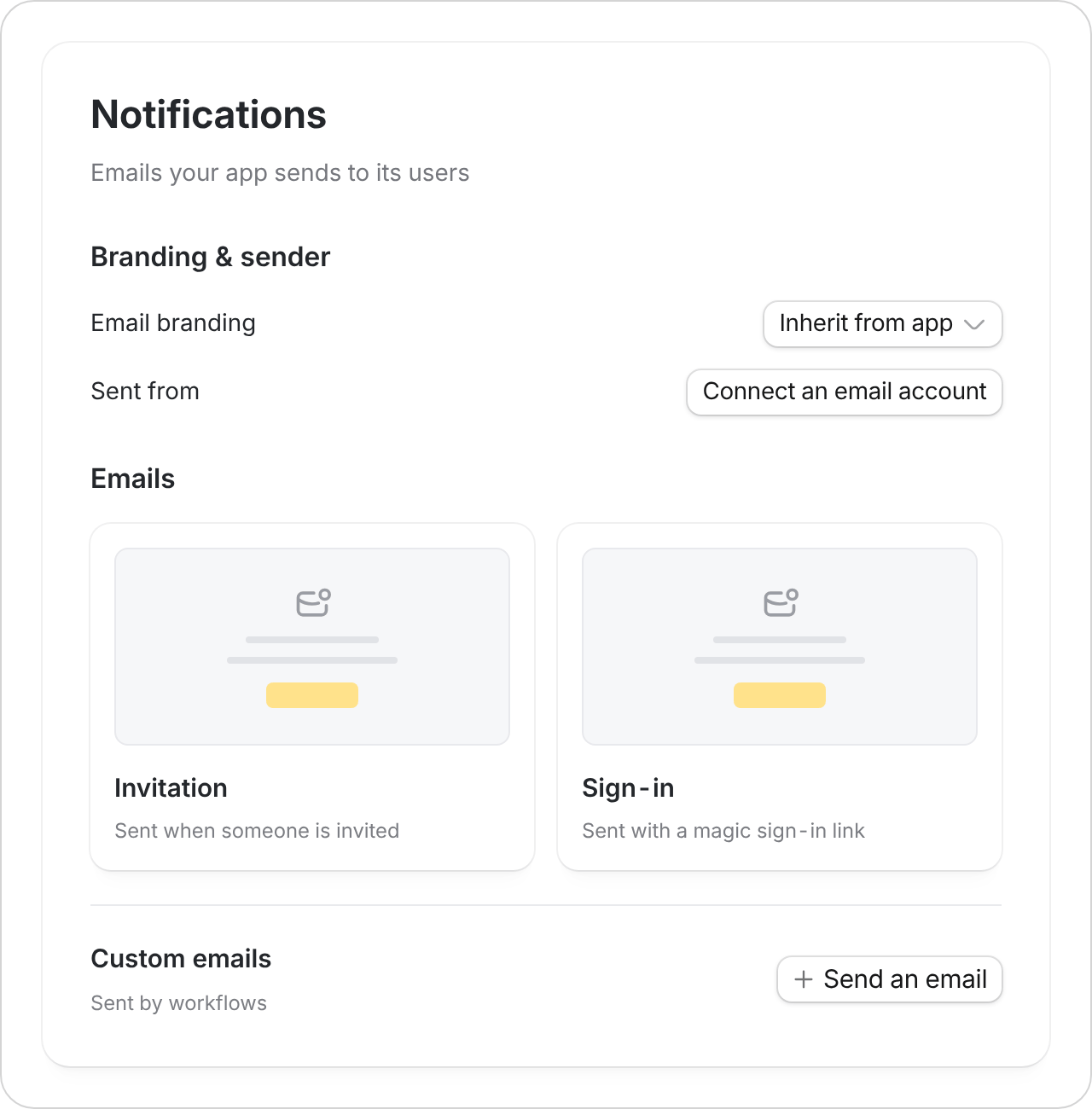
Customize branding and sender
Under Branding & sender:- Email branding: Inherit the app’s branding or choose an available Brand Kit.
- Sent from: Select Connect an email account to use your own sender. Supported options include Gmail, Outlook, and a custom email server.
Edit an invitation or sign-in email
- Select the Invitation or Sign-in card.
- Update the subject, heading, message, and button text as needed. Use the available variables to include details such as the app name.
- Review the preview, save your changes, and send a test email before inviting customers.
Invitation links expire after 7 days. Sign-in links expire after 15 minutes. These links let the recipient sign in, so they should not forward them to someone else.
Custom emails from workflows
Use Custom emails to find workflows that send messages, or select Send an email to describe a new email task to Zite. For example:When a customer submits a service request, email them a confirmation with the request number and expected response time.Tell Zite the trigger, recipient, and content. Test with your own email address, then check Workflow Runs if a message does not arrive.