Bring your existing apps, forms, and data together in Workspaces 2.0.
Move an existing business system into a workspace without rebuilding it. Zite carries over its data and existing access.To move a form into a Zite workspace, see Move a form into a Zite workspace. That is a different path from this Classic workspace migration. If you built the form in Fillout, the same steps apply.
Classic workspaces group Fillout forms. New Classic workspaces can only contain forms. Older ones may also contain apps and databases that haven’t been migrated yet.
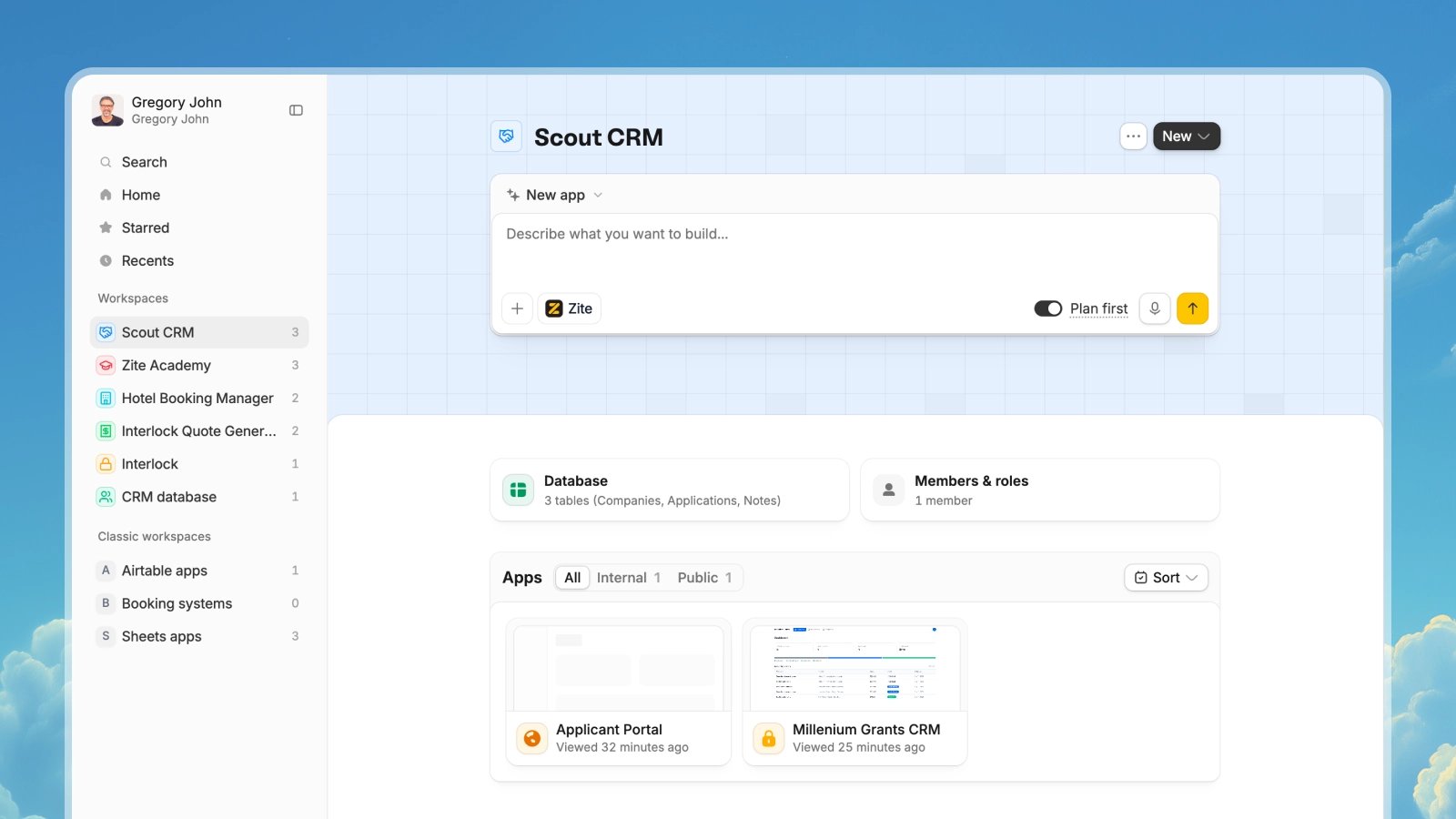
Workspaces 2.0 bring one Zite Database, its connected apps and forms, shared logic, and user access together.
Migration groups items by their shared Zite Database, rather than moving everything in a Classic folder.The new sidebar does not require another migration if you already use a Workspaces 2.0 workspace. Open Overview, Apps, Forms, Database, or Users from that workspace’s sidebar. In the compact sidebar, open More to find Forms.
Apps and forms connected to the same Zite Database move together.
If your app uses Airtable or another external data source, you can keep using it. Moving to Workspaces 2.0 does not require moving that data into Zite Database.
From the organization sidebar, open Classic workspaces and choose the workspace containing your app or database. If you’re inside a new workspace, open its name and select All workspaces first.Open the app or database. When Zite asks you to migrate, select Get started. You can watch the short explainer first. If you don’t have access to migrate the items shown, ask an organization admin to help.
2
Review what will move
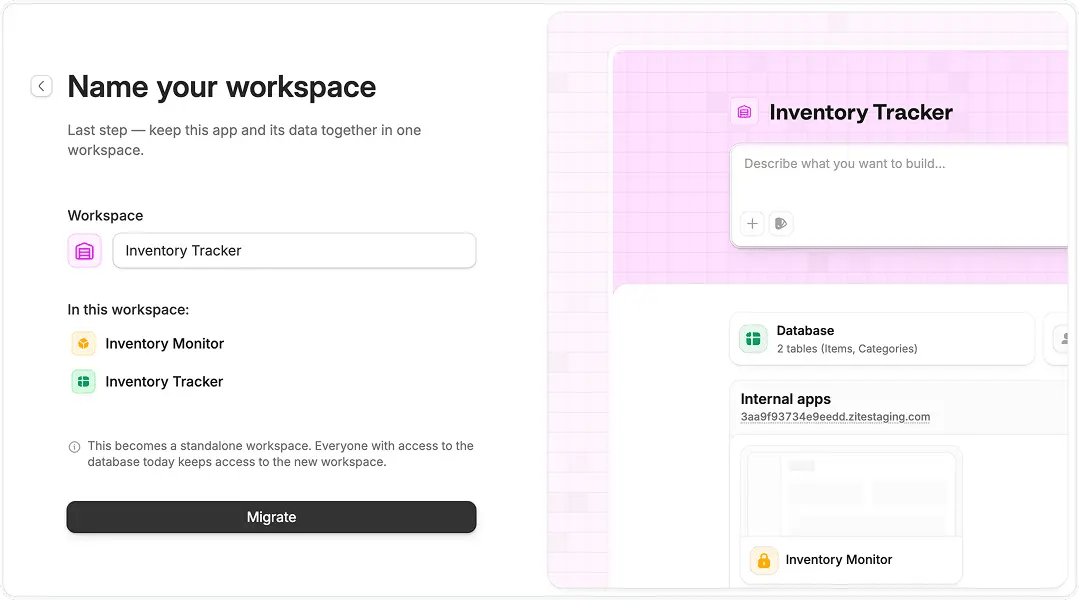
Already using a Zite Database: Review In this workspace. The database and its connected apps and forms move together.
No Zite Database: Choose Create a new workspace, or Add to an existing workspace when available. A new workspace gets its own database, ready if you need it later.
For a new workspace, enter a name such as “Sales operations.” For an existing one, choose the destination.
3
Migrate and check your system
Select Migrate and keep the tab open until setup finishes. Larger systems can take a few minutes.In the new workspace:
Open your apps and try their main tasks.
Check your database and submit a test form if you use one.
Select Users in the sidebar to review editors, members of internal apps, and external users of public apps.
Existing database and app access carries over. Published apps remain available during migration. Open Users afterward to check who can edit the workspace and who can use its apps. See Managing users.
Does this move all my Classic forms?
Only forms connected to the Zite Database being migrated move with it. Forms elsewhere in the Classic folder are not included automatically. Review the list before confirming.
What if I have reached my workspace limit?
You can still migrate. Workspaces created by migration count toward your allowance afterward. See Plans & limits.
Can I move back to Classic?
No. Once migrated, an app cannot return to the Classic workspace model.
Does migration merge two existing workspaces?
No. It groups a Classic database with the apps and forms connected to it. It does not combine the databases of two existing Workspaces 2.0 workspaces. Moving workspaces into the same sidebar section also leaves their databases and access separate.If an app’s Move to workspace menu says it cannot move because it uses its workspace’s database, that move is currently unavailable. Migration does not bypass that restriction.
What if setup cannot finish?
Missing permissions: Ask an organization administrator to help with access to the items being moved.
Database in Trash: Restore the database before migrating. Select Restore database when offered, or ask an organization administrator to restore it, then reopen the app.
Multiple Zite databases: An app connected to more than one Zite Database cannot migrate automatically. Contact support@zite.com for help with the next steps.
Missing connection: Select Manage connections to reconnect the required service, then Retry setup when offered.
An app did not finish: Follow its setup message. The workspace may already be ready even if one app still needs attention.
If you are stuck, contact support@zite.com with the message you see.
Earlier migration screens
These images show the earlier interface. The final action is now Migrate. After migration, use Users in the workspace sidebar to manage access.