

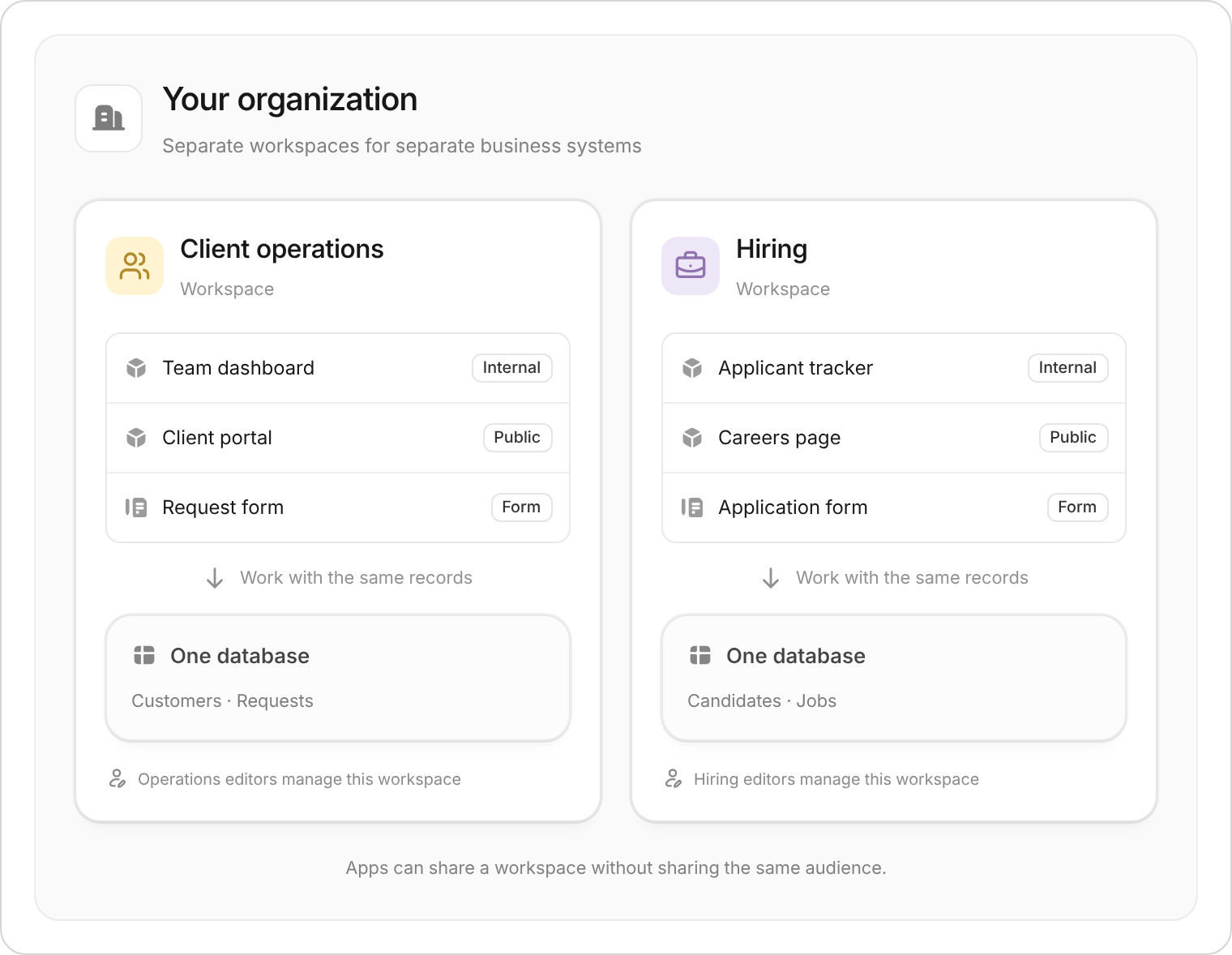
Two example business systems. Each workspace has its own database and editor access.
Use this workspace or create another?
A different audience doesn’t require a different workspace. Your team’s internal dashboard and a public client portal can share data, with different app access and data permissions.
Your plan sets how many workspaces you can create. See Plans & limits.
Find your way around
Open a workspace in Zite. Overview shows its apps, automations, and shortcuts to the database, users, and integrations. Use the sidebar to move between areas without leaving the workspace.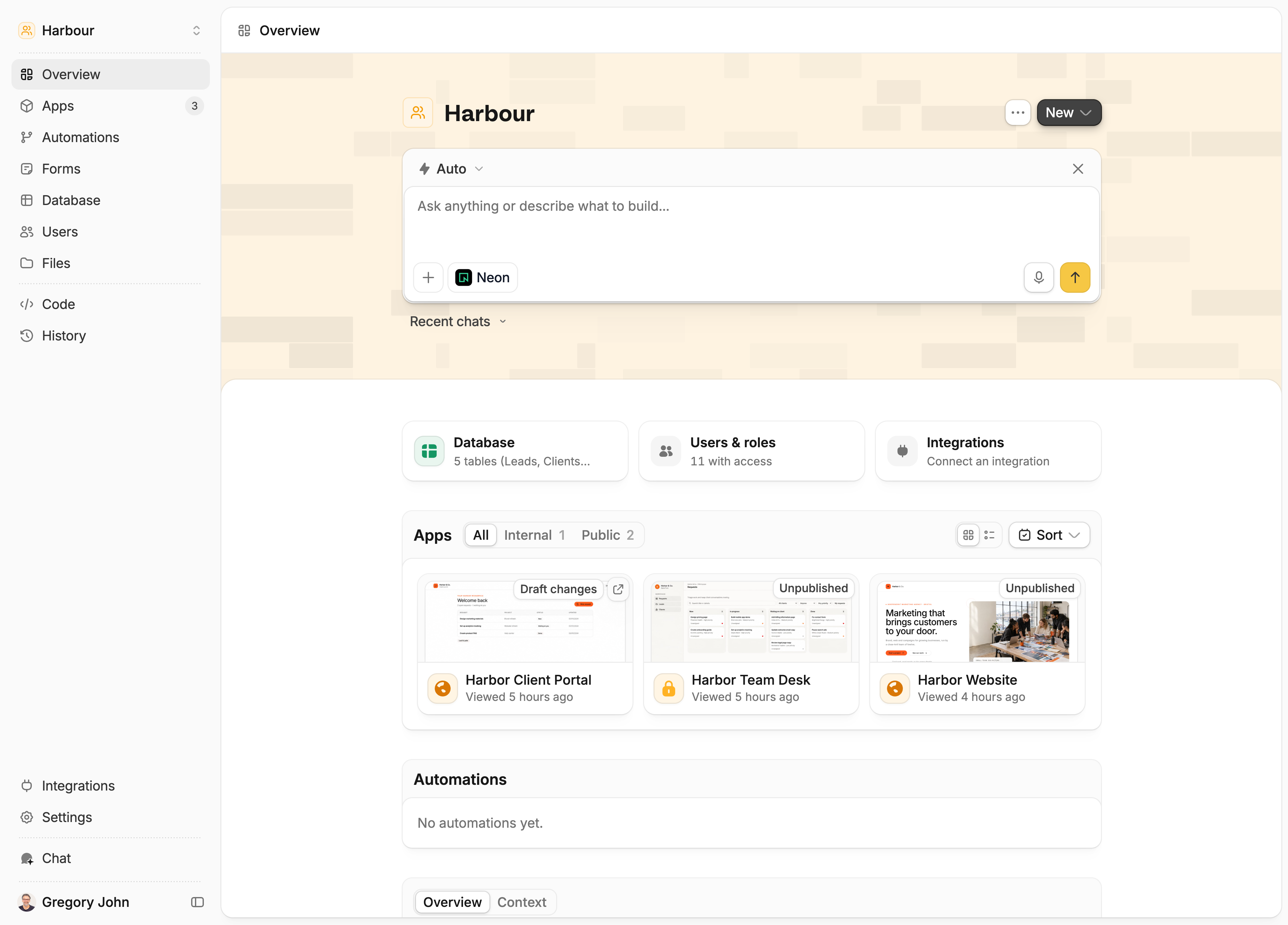
The workspace Overview, with navigation on the left and apps in the main area.
In the compact sidebar, open More to find Forms and History. Integrations and Settings are near the bottom of the sidebar.
In an app editor, Database, or Users, select Chat to open the agent beside your work. On Overview, use the chat box on the page. Forms and History don’t have a chat panel.
Editors build and manage the workspace. Members and external users with access to use an app don’t automatically have editing access. See Managing users.
Find uploaded files
Files is marked Coming soon in the sidebar. Only organization admins can open the workspace’s Files page, where this feature is enabled. Workspace editing access or access to use an app does not grant access to this page. Open Files to browse uploads from your workspace’s database, forms, and apps. Search by filename or use Filter to narrow the list by type. Select a file to see its details and preview it when supported, or select Open to open it. To give the agent reference documents and instructions, use Context on Overview instead.Add to your system
On Overview, select New, then choose App, Automation, or Form. The new item belongs to the current workspace.- Apps: Describe the task and which existing tables it should use.
- Automations: Describe what should start the workflow and the steps it should carry out.
- Forms: Connect submissions to the table where you want to collect them, then test a submission.
Find an app or table quickly
Press Command + K on Mac or Ctrl + K on Windows to open search.- Search this workspace: Find apps you have access to. Editors can also search for forms, tables, people, and integrations. Table search finds tables, not individual records.
- Search across your organization: Remove the workspace-name filter in the search box.