

- Context: Background, policies, and processes the agent can refer to while building your system.
- Integrations: Connections to tools such as Gmail, Slack, or Airtable that your system can work with.
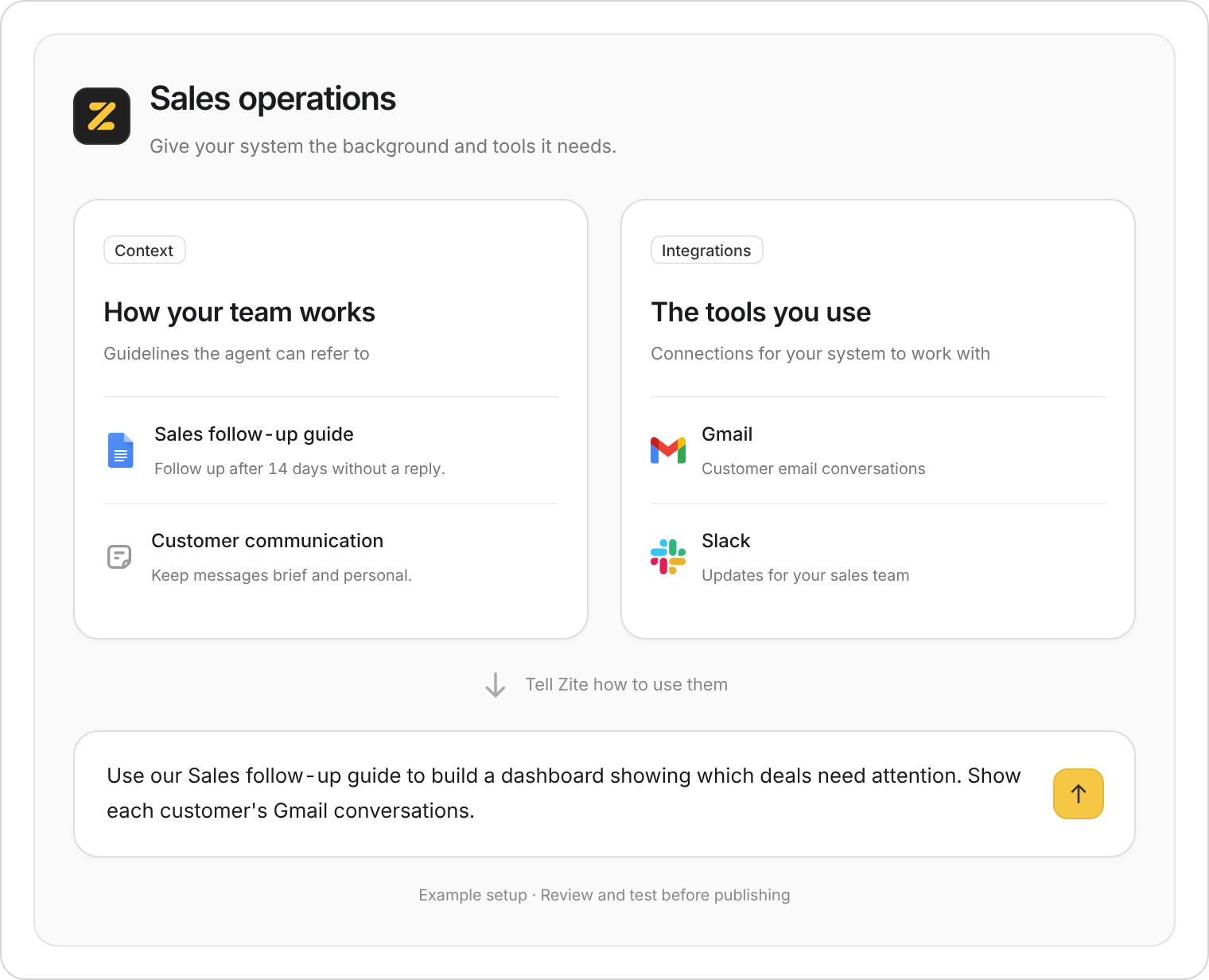
For a sales system, context explains your follow-up process. Integrations connect the tools used to carry it out.
Add context
Workspace editors can add and update context. Open Overview in the workspace sidebar, scroll below the apps and automations, select the Context tab, then Add context.
PDF and Word uploads aren’t supported yet. You can paste their text using Write text.
Context gives the agent reference material for building. The separate Files page is marked Coming soon. Where enabled, it lets organization admins browse uploads from the workspace’s database, forms, and apps; it does not replace context.
What to include
Keep each document focused on one topic:- Your business: Who you serve and what your team needs to get done.
- Your process: Sales stages, onboarding steps, or approval rules.
- Your standards: Brand guidelines, preferred wording, or examples of good work.
“Use our Sales follow-up guide to build a dashboard showing which deals need attention.”
Keep it current
- Written notes or text uploads: Open the item in Context, edit it, and save.
- Google Docs: Edit the original document, then use Refresh from Google in its context menu to update Zite’s copy.
- Outdated guidance: Use the item’s menu to remove it from context.
Adding a Google Doc saves a copy for the agent to read. Changes in Google Docs don’t automatically update that copy.
Connect your tools
You need workspace editing access to open Integrations and manage connections. See Managing users for how to give someone editing access.1
Open Integrations
Select Integrations near the bottom of the workspace sidebar. You can also use the Integrations shortcut on Overview. Existing connections appear under Connected when there are any.
2
Choose a tool and account
Search for the tool you need and follow its connection steps. Choose the account your system should use and approve the requested access.Open a connected tool to review its account and any app-specific settings shown. If prompted to choose an app, select the one you’re building.
3
Describe the job and test it
Tell Zite which app should use the connection and what it should do. For example: “In our sales dashboard, use Gmail to show email conversations with each customer.”Open a customer in the preview and check that the expected conversations appear. If your app sends messages or changes information, test with a record or recipient you’ve chosen for that purpose. Then Publish when you’re ready.