

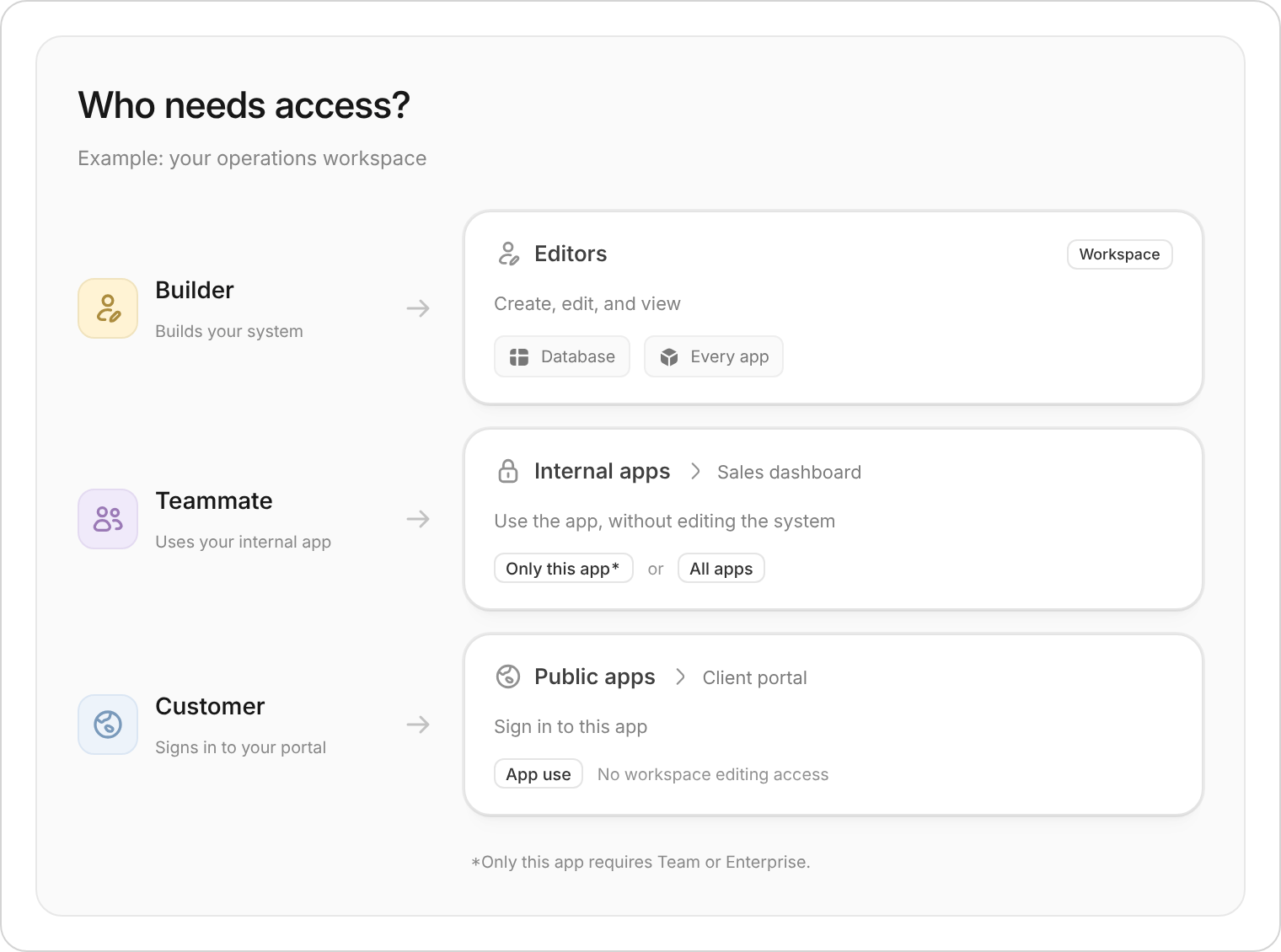
Example access choices for an operations workspace.
Invite someone
1
Open Users
Select Users in the workspace sidebar. The Users & roles shortcut on Overview opens the same area.
2
Choose the right view
- Editors: People who need to create, edit, and view the database and every app in this workspace.
- Internal apps: Organization members who need to use internal apps without editing the system. Select an app beneath this heading to open its Members page, or select All beside the heading to open All internal apps.
- Public apps: People who need to sign in to public apps, including people in your organization. Select an app beneath this heading to open its External users page, or select All beside the heading to open All public apps.
3
Invite and check the scope
Click Invite and add the person’s email. For an internal app, check Only this app or All apps before sending. From All internal apps, you can select particular apps when your plan supports it. All apps gives use access across the workspace’s internal apps.Publish a public app before inviting people to it. For a public-app invitation, enter the person’s first and last names as well as their email, unless Zite fills in their name from an existing organization member’s profile.
Giving someone access to only selected internal apps requires Team or Enterprise. On other plans, internal use access covers all internal apps in the workspace.
Earlier Users layout
Earlier Users layout
This screenshot shows the earlier layout. In the current workspace, open Users from the sidebar. Choose Editors, select an app under Internal apps or Public apps, or select All beside either heading.
Respond to an access request
If someone requests access to a workspace, app, or form, Zite emails up to three people who can grant it. Requests go to the workspace owner and editors first. If none are available, they go to organization admins. Select Manage access in the email to open an editor invitation in Users with the requester’s email filled in. Sending this invitation gives them permission to edit the workspace’s database and every app. If they only need to use an app, close the invitation and select the app under Internal apps or Public apps. Then click Invite and follow the steps above. Receiving a request does not grant access automatically. When an existing organization member receives new access to a workspace, app, or form, Zite emails them an Open it link. They can open it using their existing account.Review or change access
- Find someone: Choose Editors or the relevant app, then search by name or email, or use Filter.
- Check internal app access: Open the person’s entry to review the apps they can use. Review the scope before saving; Remove from all internal apps affects every internal app in this workspace.
- Manage builders: Editors keep access across the workspace. Manage them from Editors. Organization admins have broader access, managed in organization settings.