

Custom domains work for both public apps and internal apps. Your app must be published, with custom domain access on your plan. See Customize links.
Connect your domain
1
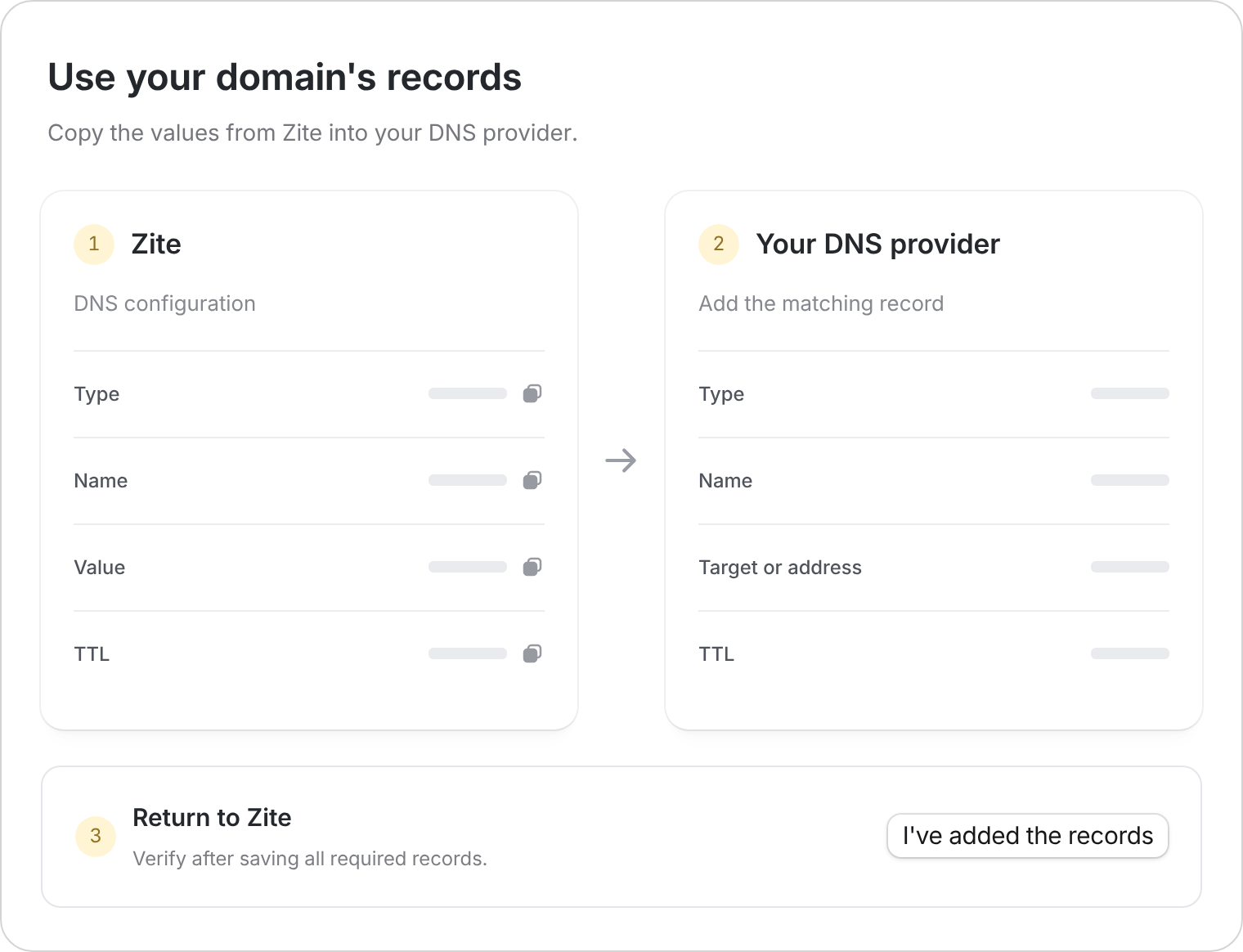
Get the records from Zite
Open Settings → Link. Select Set up beside Add your own domain, then enter the domain or subdomain you want to use.Keep Zite’s DNS configuration open. It shows the records needed for this specific address.
2
Open your domain's DNS settings
Sign in to Cloudflare. Select your domain, open DNS → Records, then select Add record.
3
Copy each required record
Match the Type, Name, Value, and TTL shown in Zite. Cloudflare may call the value Target, Content, or IPv4 address, depending on the record type.Set Proxy status to DNS only for the records pointing to Zite. Save each record.
4
Verify in Zite
Return to Zite and select I’ve added the records. Follow any message about missing or conflicting records.Once setup finishes, open the domain and test your app, including login if enabled.
Root domain or subdomain?
- Root domain: An address such as yourcompany.com. Connecting it changes where that website opens.
- Subdomain: An address such as portal.yourcompany.com. Use this when your main website should stay where it is.
If verification is still pending
- Check that you’re editing the domain’s active DNS provider.
- Compare every record with Zite, including the name and value.
- Resolve the conflicting records Zite identifies. Leave unrelated email and website records alone.
- Confirm the records pointing to Zite use DNS only.
- Allow time for saved changes to spread, then check again.